Control your screens from Claude or ChatGPT

Connect Screenbird to the AI app you already use. Ask in your own words which screens are offline, put the lunch menu on the screen at the entrance until two, or start a scene, and the app does it in your account.

Connect your AI app

7-day free trial. Cancel anytime.

Connect in three steps

Claude wants to use Screenbird
TeamMain office
Claude will be able to:
  • See your screens and what is on them
  • See your files, designs and apps
  • Show content on your screens
  • See your scenes
  • Start scenes and put screens back to normal
  • Create designs
DenyAllow
1

Add Screenbird to your AI app

In Claude, find Screenbird in the connectors directory. In ChatGPT or another MCP app, add it with the address https://mcp.screenbird.app/mcp.

2

Sign in and choose the team

Sign in to Screenbird, pick the team the app may use and check what it may do.

3

Ask in your own words

Ask about your screens or tell the app what to show. It usually asks you to confirm before it changes a screen.

What people ask for

Restaurant

The special sold out? Ask for the new one on the counter screen while you're still in the kitchen.

Gym

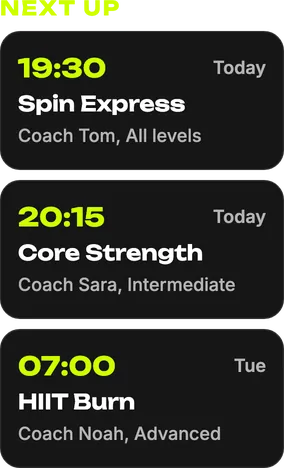
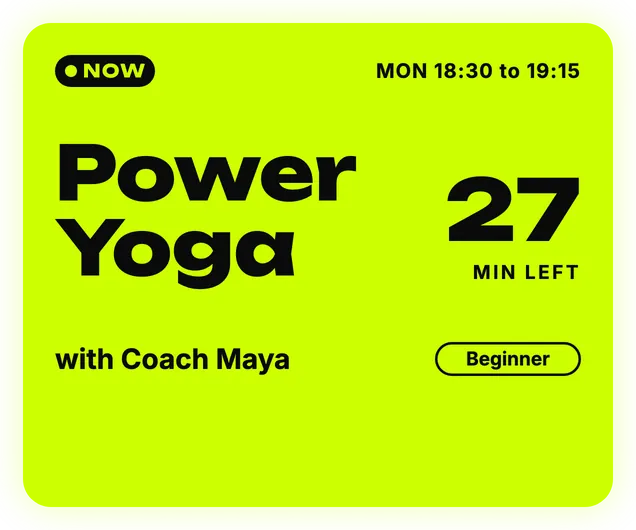
A class moved? Ask to update the class board on every screen before the first members walk in.

Office

Describe a welcome screen for today's visitors, and the design appears in your files, ready to show.

Saturday 14 June
Tonight
18:00
Doors open
Main gate
19:00
Opening act
Side stage
19:45
First band
Main stage
20:45
Second band
Main stage
22:00
Headliner
Main stage
23:30
DJ set
Club room
00:30
Last call
Bar

Venue

When the doors open, start the scene from your phone, and every screen in it switches at once.

Everything the connection can do

See your screens, whether they're online and what they show
Find your files, designs and apps
Show content on a screen or sub-screen, for a set time or until you put it back
Put a screen back to its normal content
Start and stop scenes
Make a new design from a description
Search the Screenbird help center, also before you sign in
Give the steps to install the player on a device, and check whether a device works
Works only in the team you choose, within the role you have there
Works in Claude, ChatGPT and other apps that support MCP connectors with sign-in

The same assistant is in your dashboard

Screenbird has an AI assistant built in. It pairs screens, builds playlists and schedules and makes designs, and you confirm each change on a card.

See the AI Assistant

Frequently asked questions

Everything about using Screenbird with Claude, ChatGPT and other AI apps.

An AI app that supports connectors with sign-in, such as Claude or ChatGPT, and a Screenbird account with an active subscription.
MCP, the Model Context Protocol, is the standard way for AI apps to connect to other software. Screenbird has its own MCP server, so any app that supports it can work with your screens.
The connection is included in Screenbird. Screenbird costs $17 per screen per month, or $14 with an annual plan. Your AI app has its own plans.
Open Settings and then Connectors in Claude, find Screenbird in the directory and connect. You can also add a custom connector with the address https://mcp.screenbird.app/mcp.
Open Settings and then Apps in ChatGPT, and add Screenbird with the address https://mcp.screenbird.app/mcp. When ChatGPT asks you to connect, sign in to Screenbird and choose the team. Step by step in the help center
No. It can't delete files or screens, change playlists or schedules, pair screens or see your billing. Before it changes what a screen shows, the AI app usually asks you to confirm.
Only the team you choose when you connect, and only what your role in that team allows. To use another team, connect again and pick that team.
Yes. Describe what you need and it makes a design from one of the templates, in your files and ready to show. Designs count toward the AI budget of your account, with at most 20 per hour.
No. The AI app only calls Screenbird for what it needs. What Screenbird sends back, such as the names of your screens and files, goes to that AI app.
Go to Settings and then Connections. Under Connected apps you see every app with its team, and Disconnect stops it right away. You also get an email whenever an app is connected.
No. A connection keeps working until you disconnect it. After 30 days without use, or 180 days at the latest, you connect again from the AI app.
Yes. Every account starts with a free trial. A card is required upfront, and you pay nothing if you cancel within the trial period.

Run your screens from the chat you already use

Connect your AI app in a few minutes.

Start your free trial

From $14 per screen per month, billed yearly
Every feature included. Cancel anytime.

© screenbird.app