Digital signage for internal communications on your office TVs
Use the TVs in your break room, corridors and warehouse for internal communications: SharePoint news, Power BI figures, new hires and birthdays, updated from your desk.
From $14 per screen per month, billed yearly
7-day free trial. Cancel anytime.

Templates for company news, figures and people
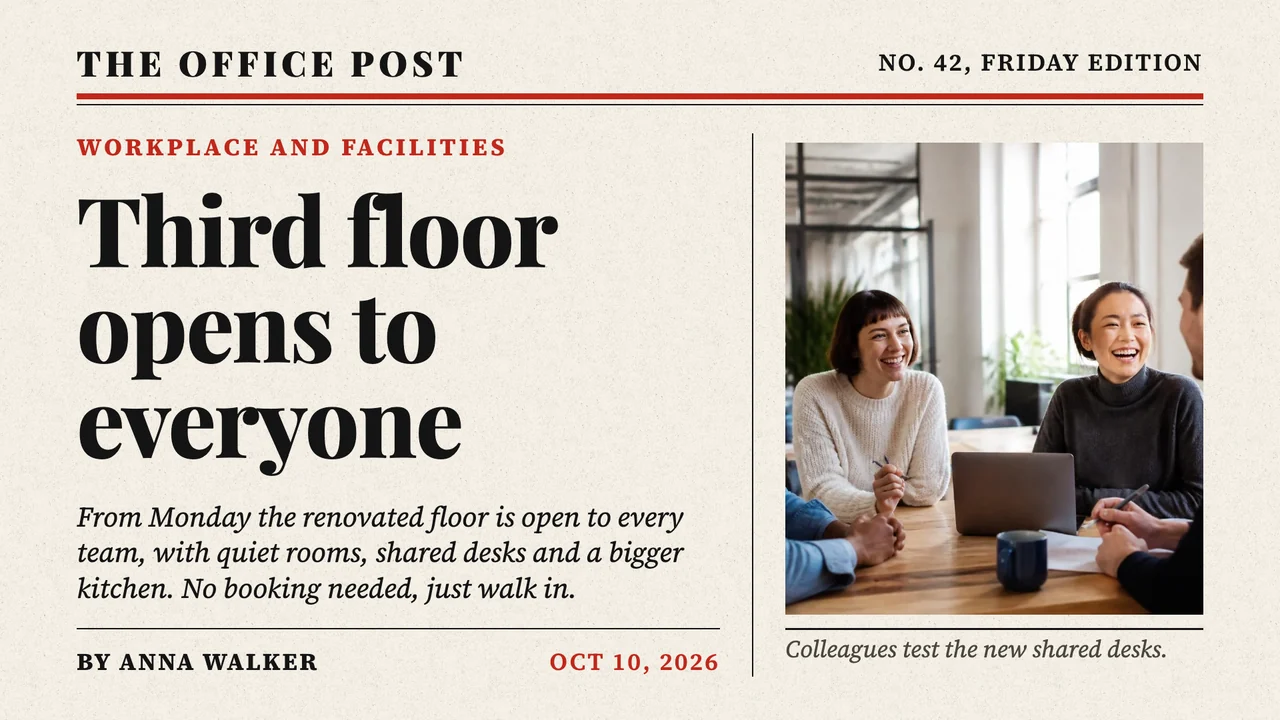
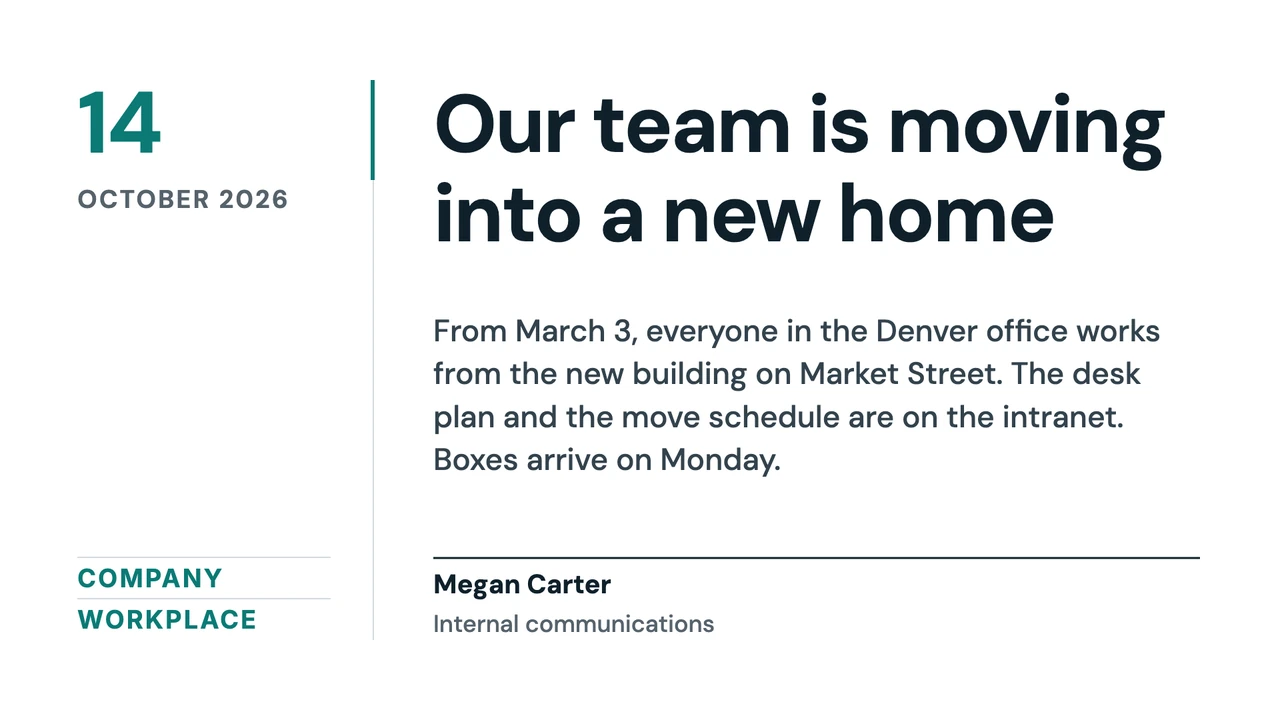
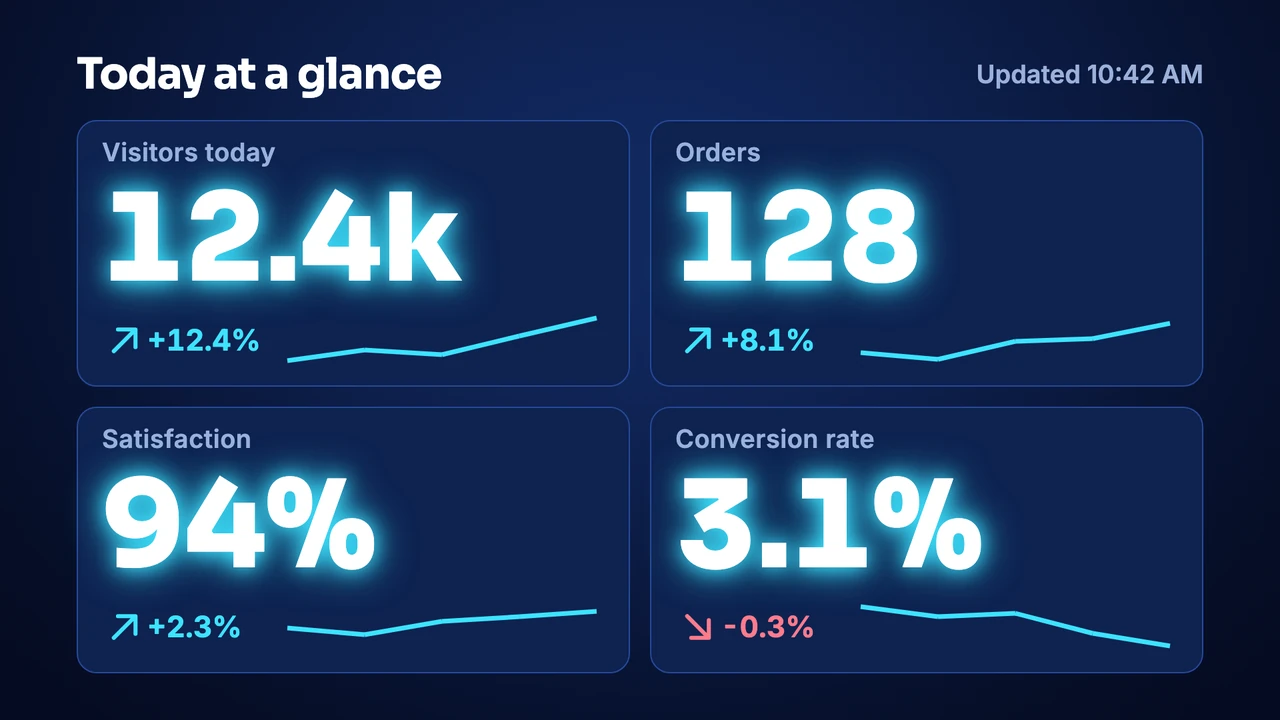
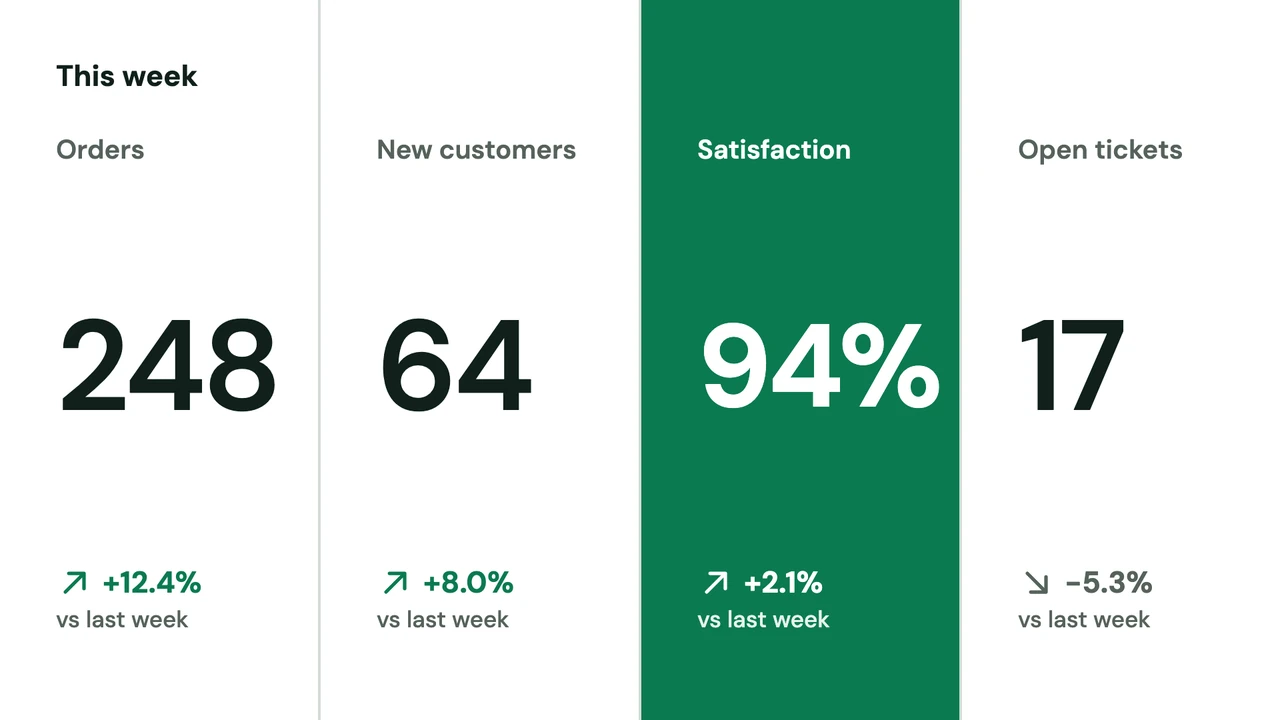
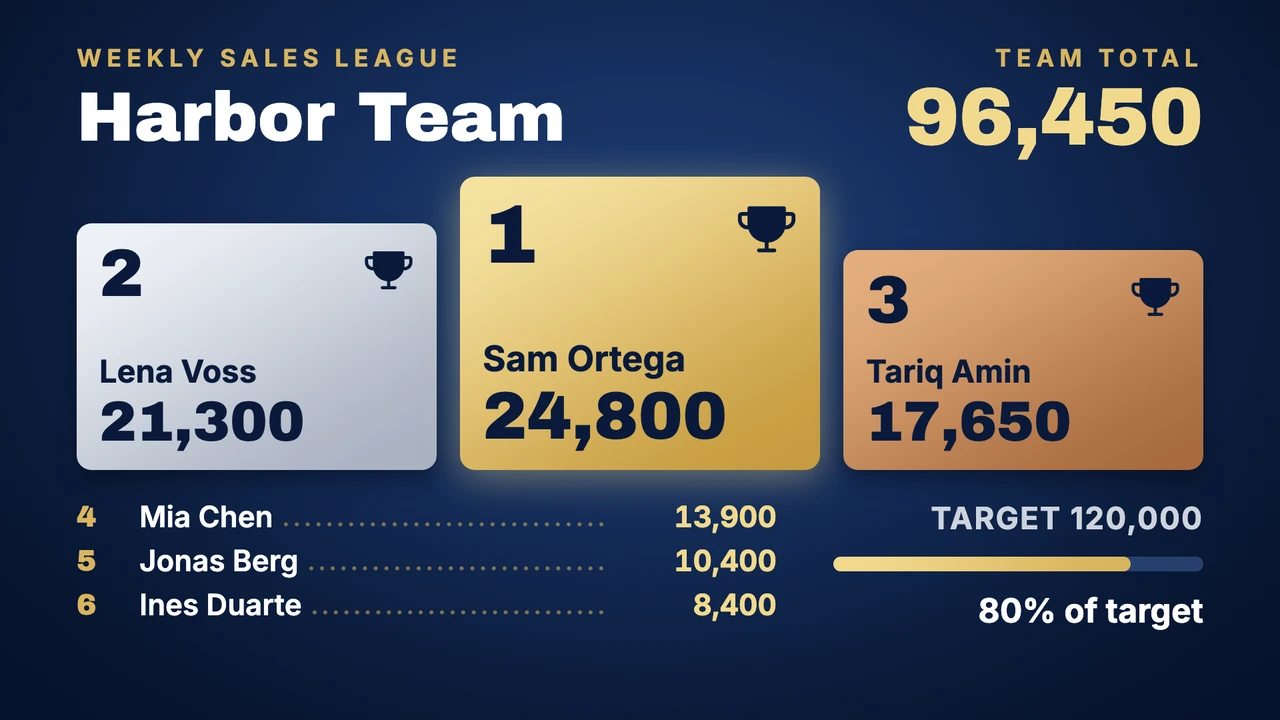
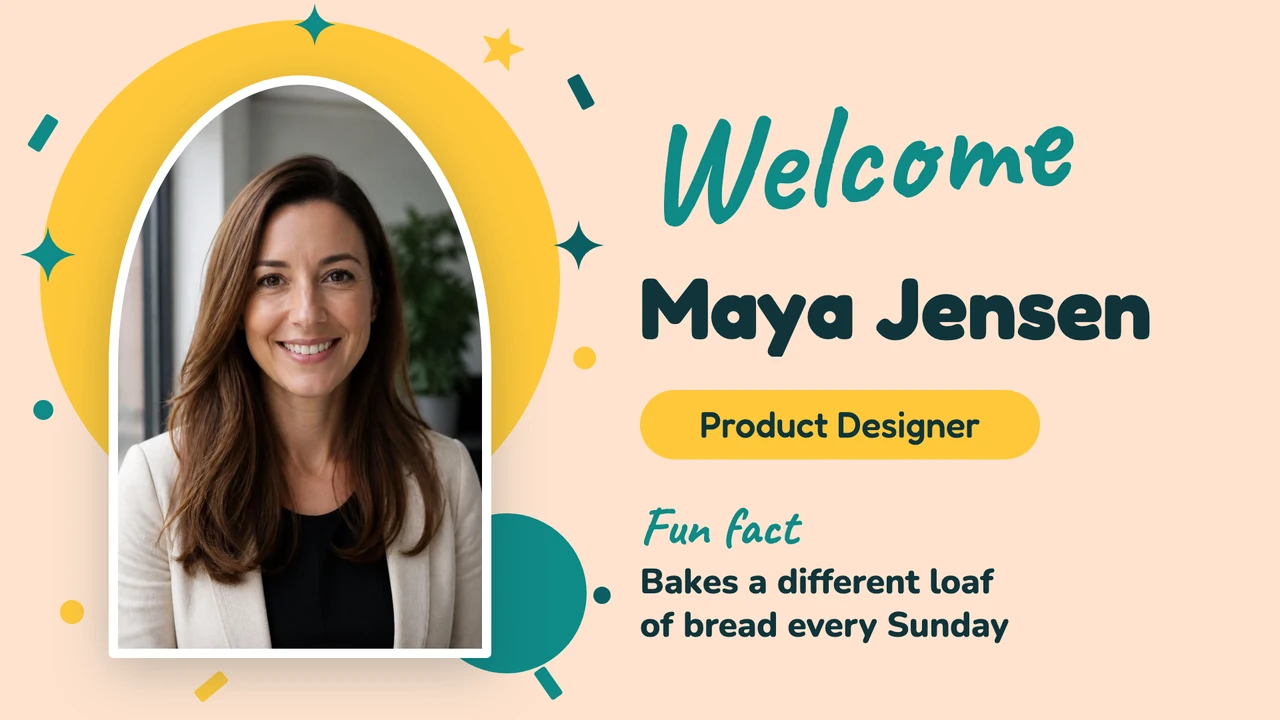
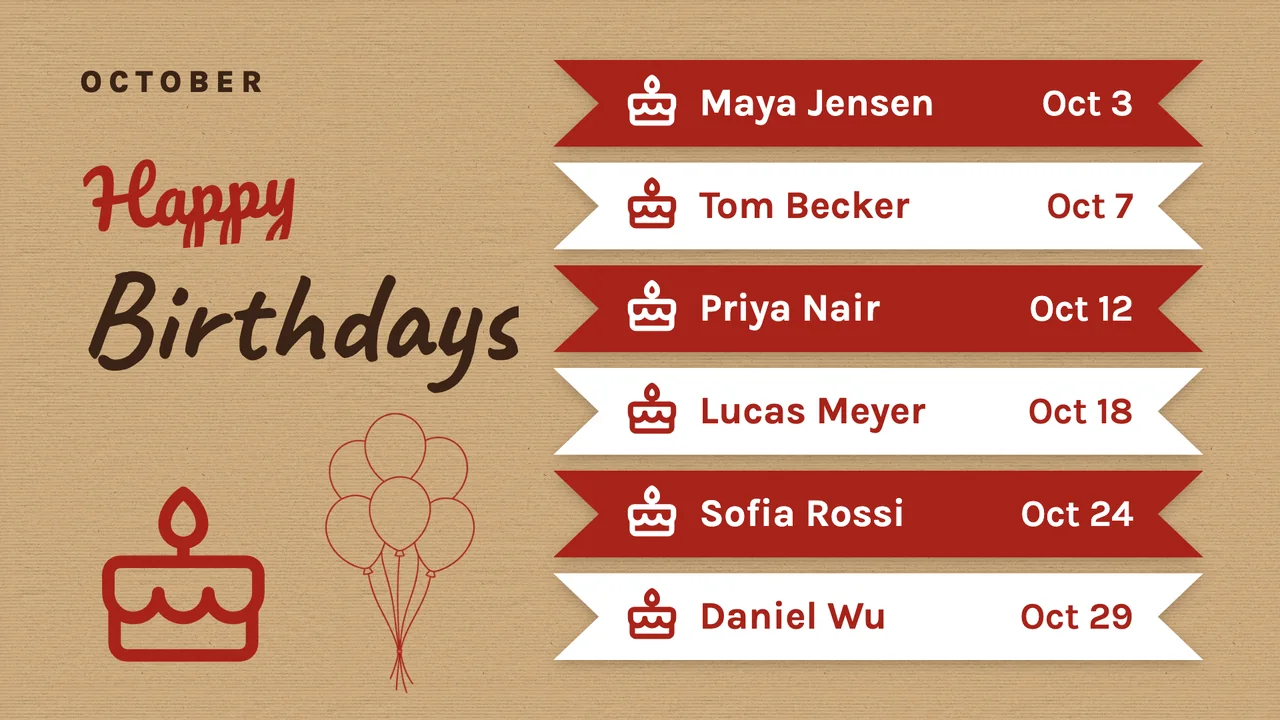
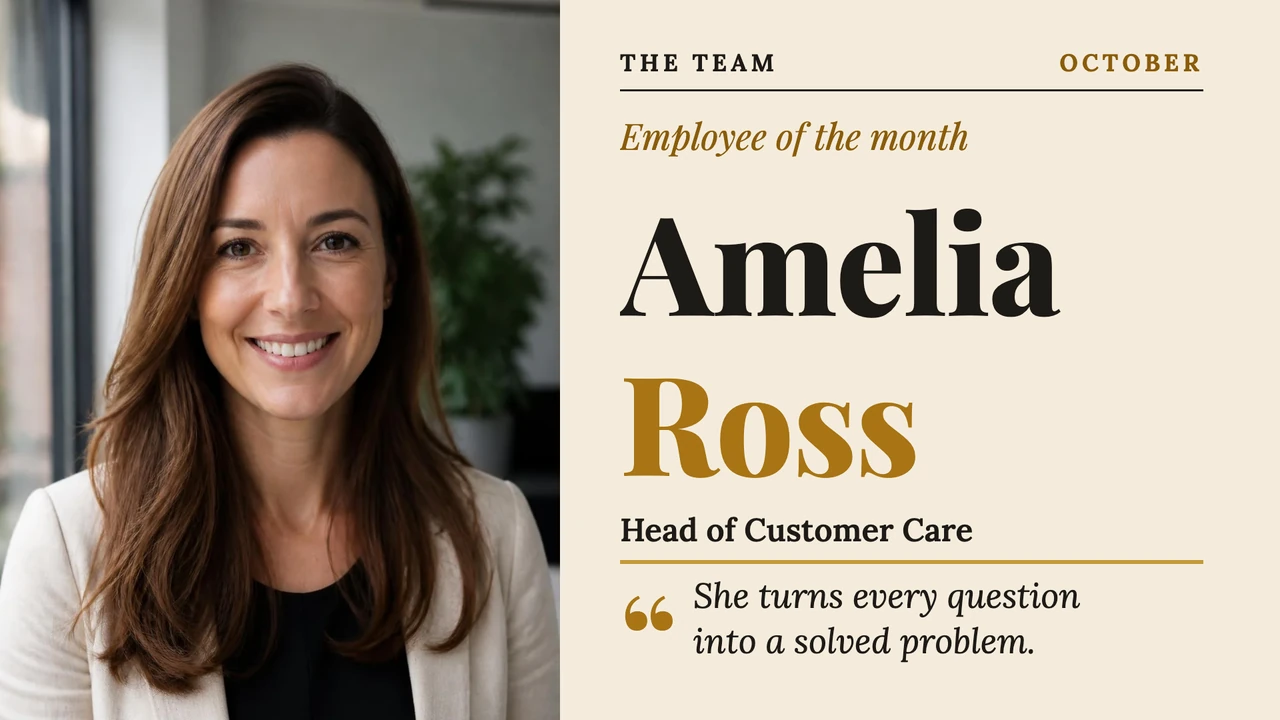
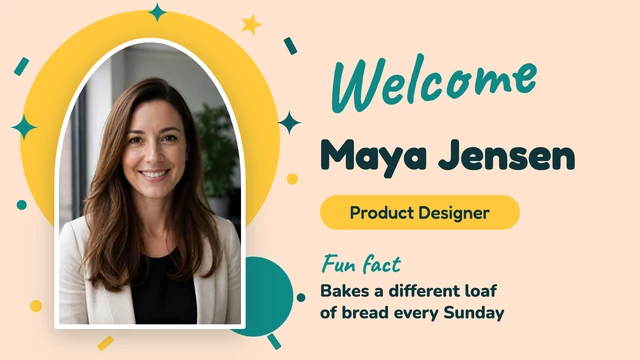
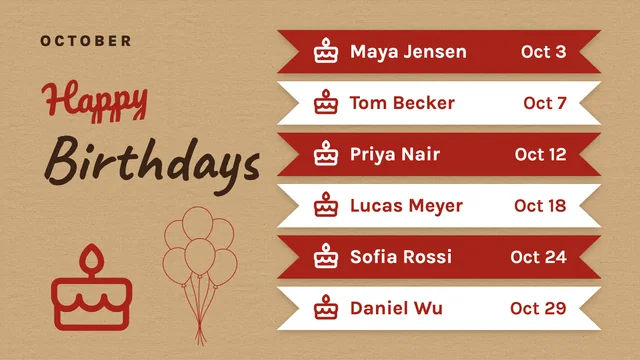
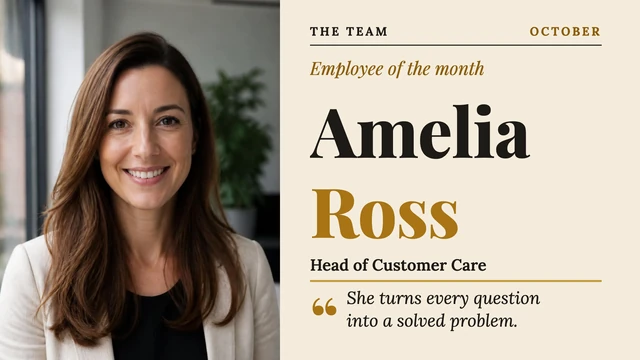
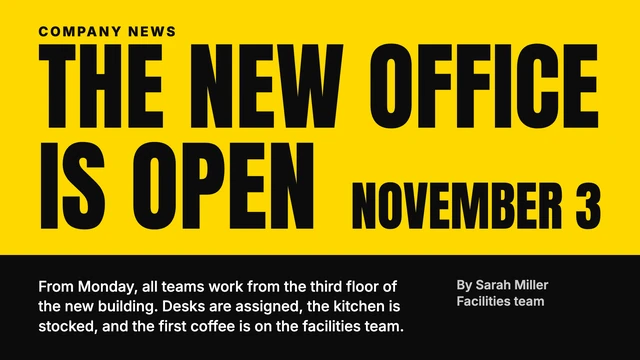
A selection of the internal communications templates in the Designer's library of more than 250. Each one also comes in portrait, and you replace the sample names, numbers and photos with your own.
What to show on it
- Company news from the posts your team publishes in SharePoint
- This month's sales or service figures from Power BI or Excel
- A welcome for the new hire who starts on Monday
- Birthdays and work anniversaries this month
- The days since the last accident, next to a safety reminder on the warehouse wall
Show more templates

Company news straight from SharePoint
Plenty of staff never open the intranet, but they do stop at the coffee machine. The SharePoint app reads the newest news posts on a site and shows each one as a full-screen card with its title, summary and image. A new post appears at the next refresh, which you set between 1 and 60 minutes.
Live figures from Power BI or Excel, next to the news
Connect your Microsoft account, choose a workspace and a report, and it runs on the TV with its data refreshed at an interval you set between 1 and 60 minutes. Set a page rotation and it moves through the report's pages on its own. Split Screen gives the report the large area and puts a Ticker with this week's announcements or the Clock beside it.
People news from a template, with an end date
Birthdays, new hires and the employee of the month change every few weeks, so they work best as designs. Open a template such as Party door new colleague, type the name and the first day, and add a photo. Or describe the slide in Design with AI, for example "a welcome for Priya, who joins finance on Monday", and it picks a library template and fills it in.
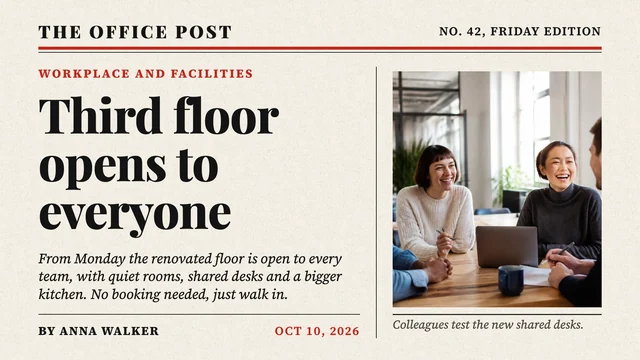
Works with the tools you already use
Connect Screenbird to the apps and services your team already runs on, no extra software required.
SharePoint
The newest news posts from a SharePoint site, as cards on the break room TV.
Power BI
A sales or service report on the wall, with data refreshed at the interval you set, from 1 to 60 minutes.
Excel Online
A team target sheet from OneDrive or SharePoint, kept current on screen.
Google Slides
The weekly update deck HR already keeps, shown slide by slide.
Set up the first screen
- 1
Start the 7-day free trial, install the Screenbird player on the TV or stick, and type its 6-character pairing code into the dashboard.
- 2
Add your first item: the SharePoint or Power BI app, or a template from the Designer.
- 3
Send it to one screen, or open a folder and check Select all screens for a notice that belongs on every screen in it.

Each screen needs a player in the TV's HDMI port: an Amazon Signage Stick or a Google TV Streamer. A PC, Mac or Raspberry Pi can play it too, and so can the TV's own browser. Amazon Signage Stick · All supported players
Several floors, sites or departments in one account
Once the break room TV runs, the warehouse and the second office usually want one too. Screenbird puts your messages on those walls; it is not an intranet or an employee app, so there is no phone notification and no record of who read what.
Folders per building or floor
Put screens in folders such as Head office, 2nd floor or Warehouse, and see for each screen whether it is Online, Offline or Sleeping.
A team per department or site
Create a team for the warehouse and pair the warehouse screens in it, so its members look after their own screens, playlists and schedules. Files such as the safety posters can go to that team with Share with teams. Head office can join each team with the Admin role.
Custom roles
Permissions are set per module, from Screens to Reports, with View, Create, Edit and Delete. A role for reception could edit files without being able to delete a screen.
One notice for a whole site
In Send to screen, open the site's folder and check Select all screens; screens in other folders you can check one by one in the same send. Sent as Temporary, a notice such as "The office closes at 3 pm today" stays up until the time you set, and then each screen goes back to what it showed before. Temporary sends reach screens that are online.
Offline alerts and play reports
A screen that has been offline for 15 minutes shows up as a notification in the dashboard. Proof of Play reports list how often each item played on each screen, as a CSV export or a scheduled email.
One plan. Everything included. No tricks.
Every feature & update included, without limitations or complicated tiers.
Everything you need for professional digital signage
All features included
No hidden costs. No contract. Cancel anytime.
Want Screenbird to manage your devices? Screenbird+ from $21/mo
Frequently asked questions
Everything you need to know about getting started with Screenbird digital signage. Can't find your answer? Check our help center.
Other use cases
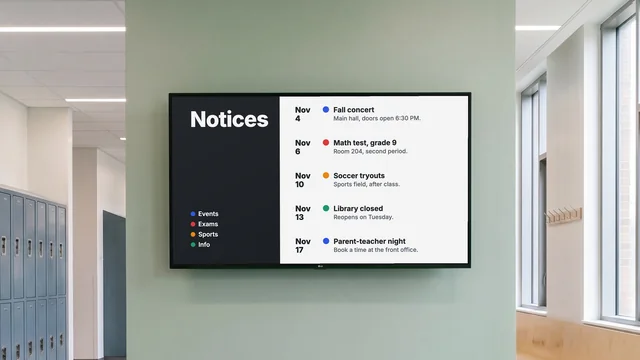
Digital notice board
Room changes, events and closures on the hallway TV, each with an end date.
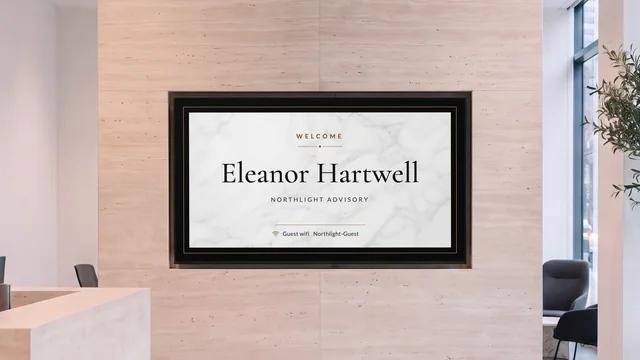
Lobby welcome screen
Greet the visitor by name and show who is on which floor, on the TV in reception.
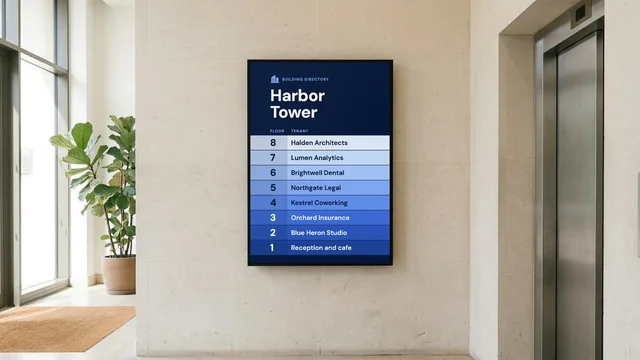
Digital directory board
Tenants, floors and suite numbers by the entrance, and a sign at every elevator landing.
By industry: Office digital signage for meeting rooms · Manufacturing digital signage for factory floors
Start with the break room TV
Connect SharePoint or open a template and send it to that one screen; the warehouse and the second office can follow when they ask.
Start 7-day free trialFrom $14 per screen per month, billed yearly
7-day free trial. Cancel anytime.