Digital signage examples and ideas, with real templates
Good digital signage examples have the same few things in common: a short message, big type, strong contrast, one clear next step, and content that is changed often enough to stay true. Below are examples for the places where screens usually hang, such as a menu board, a hallway, a waiting room, a shop window and a lobby. Each one is a real template from our library, so you can see what it looks like and edit it into your own.
Many pages with signage examples show photos of installed screens. A photo shows a screen on a wall, but not what is on it or how it was made. These are the actual designs: you see the layout, then read what goes on it and why it works, and each section leads to a page with the full setup for that use.
Everything here is built in the Screenbird Designer, which has more than 250 templates in landscape and portrait. The sample texts, names and prices in the pictures are placeholders that you type over.
In short
- Show one message per slide, in large type, with strong contrast between text and background.
- Give the viewer one clear next step: a time, a room number, a QR code, or simply the price.
- Pick the example by the place the screen hangs, then copy the layout, not the sample words.
- Give anything that expires an end date, so a screen never shows last month's news.
- Screenbird templates are part of the subscription; you try them for 7 days before you pay.
Which example fits which screen
| Where the screen hangs | What goes on it | Section |
|---|---|---|
| Restaurant, cafe or bakery counter | Dishes and prices, a daily special, breakfast and lunch menus | Menu boards |
| School hallway, office or staff room | Events, room changes, closures, house rules | Notice boards |
| Waiting room | Opening hours, Wi-Fi details, a health tip | Waiting rooms |
| Lobby, hotel or apartment building | A welcome, facilities and hours, rules, evacuation steps | Welcome screens |
| Shop floor or checkout | A deal that ends on a date, a QR code, bestsellers | In-store promotion |
| Shop window | One product, a new collection, opening hours | Shop windows |
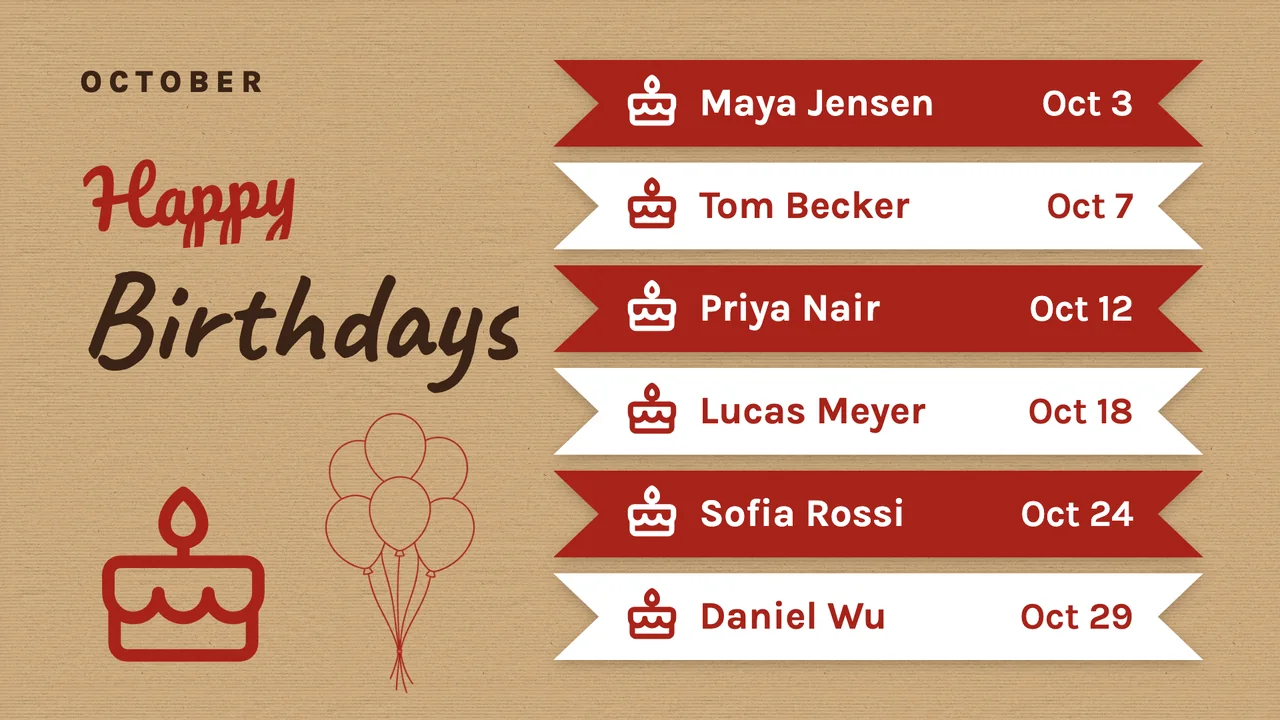
| Office, warehouse or factory floor | Key numbers, news, birthdays, days without an accident | Internal communications |
| Building entrance or corridor | Who is on which floor, arrows to the right room | Directories |
Landscape screens suit most of these. Narrow spaces, window displays and directories often work better in portrait.
Digital menu board examples
A menu board is the most common first screen, because a price that changes should not mean a reprint. What works is a menu that is easy to scan in a few seconds: a clear heading, dishes grouped in a few blocks, prices easy to find next to each dish, and photos only where they help sell the dish. The landscape ones suit a screen above a counter or in a dining room; the portrait ones suit a narrow wall or a screen next to the till.
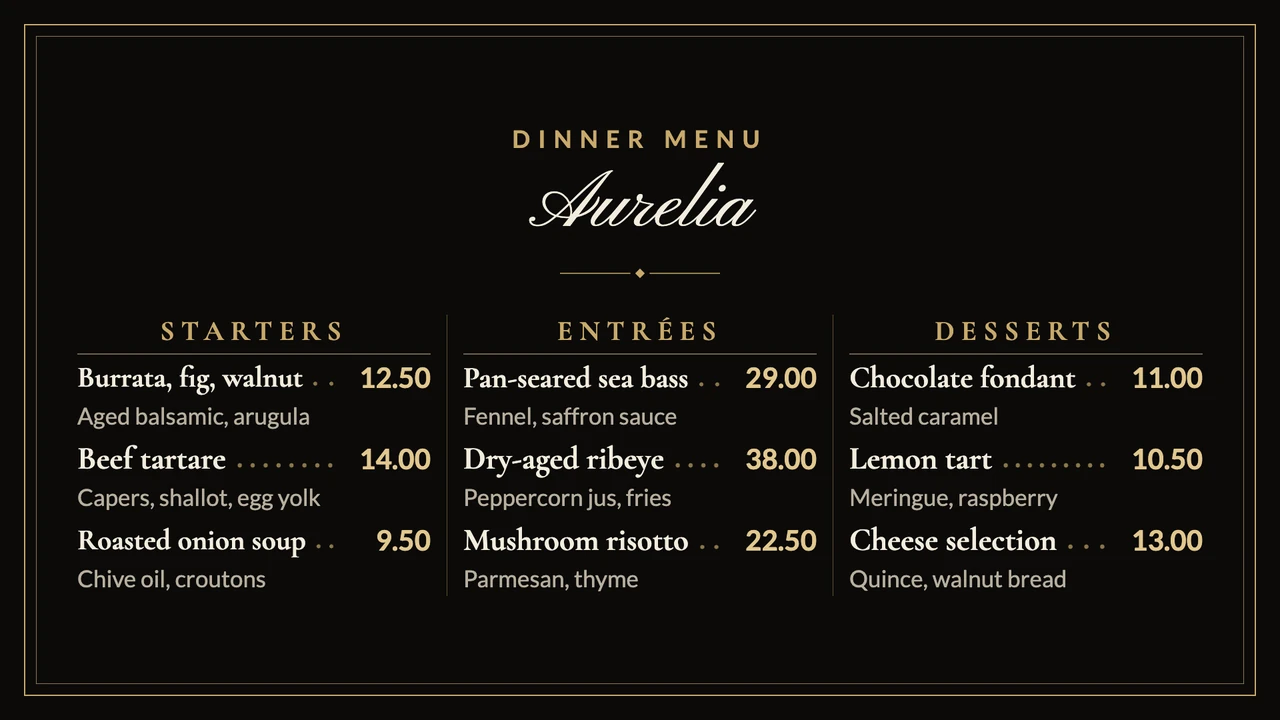
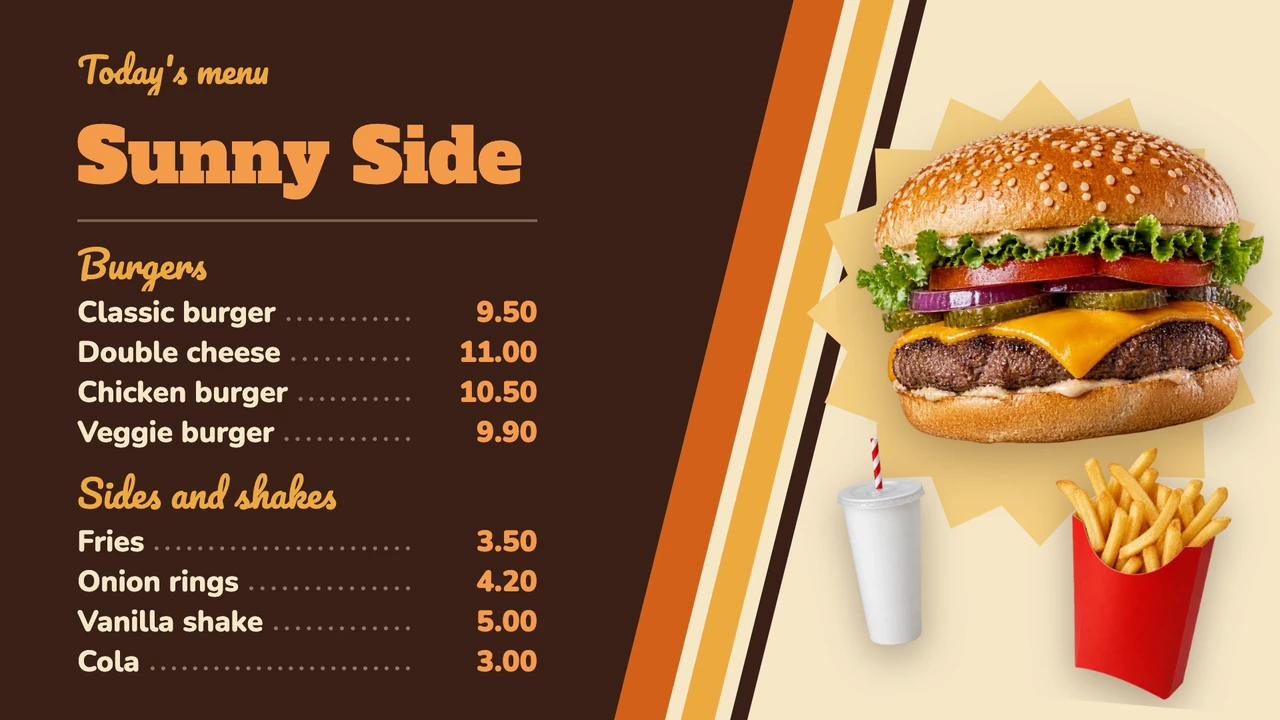
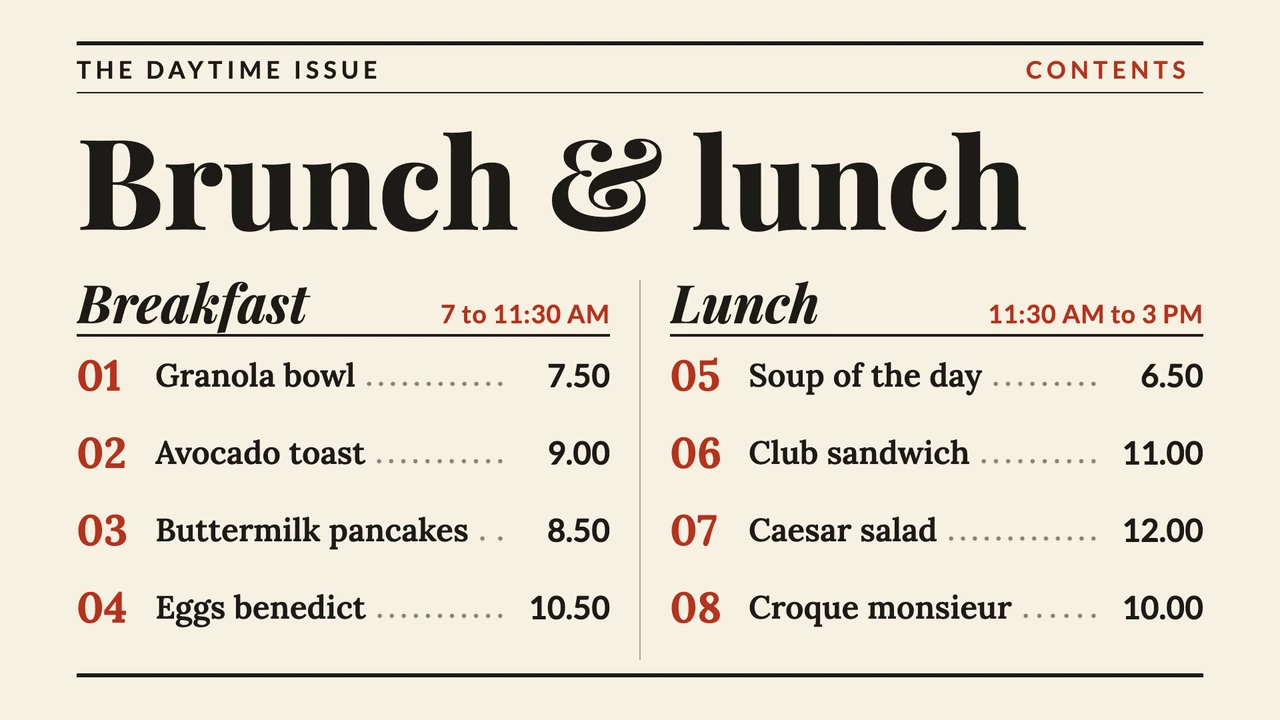
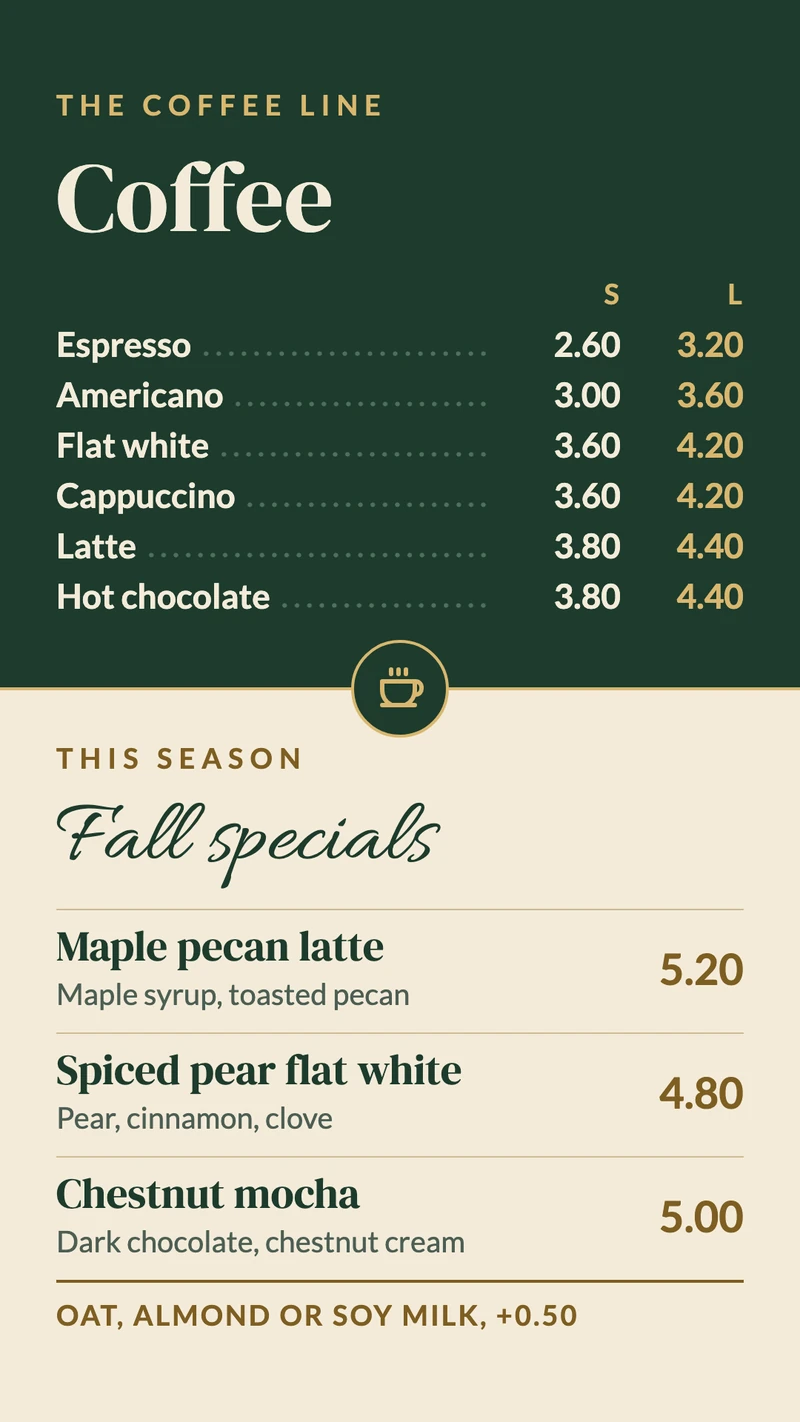
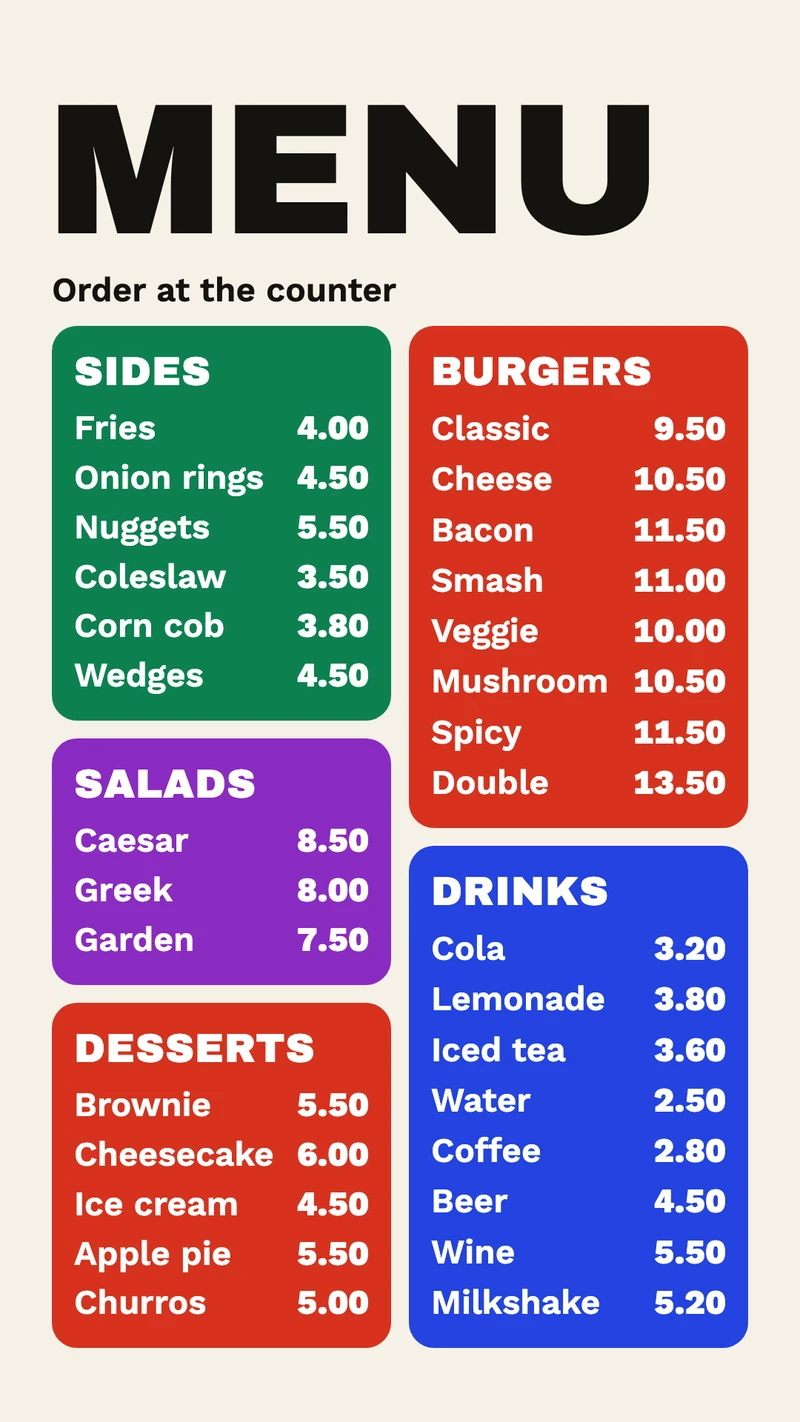
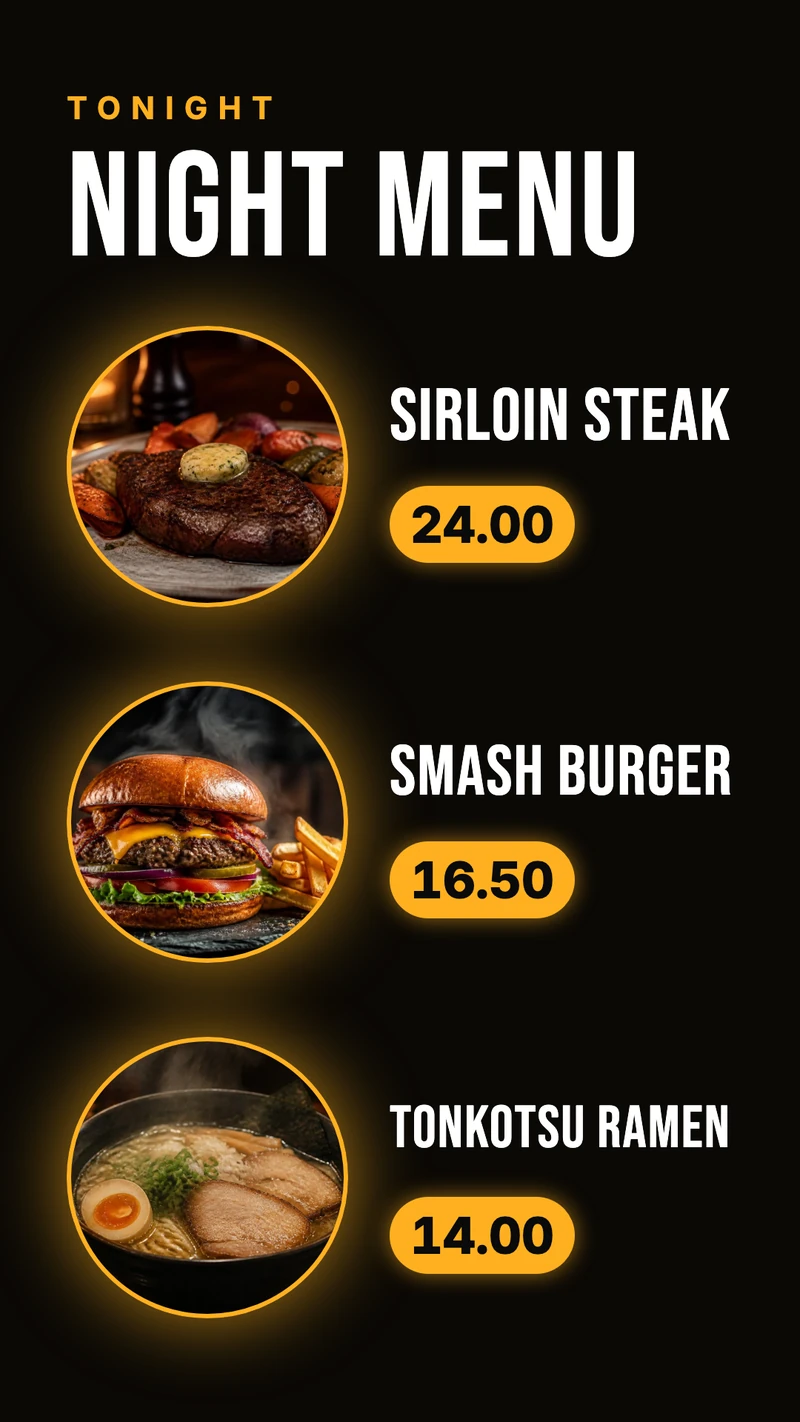
- A breakfast menu that hands over to lunch at a set time, using a schedule.
- Today's special as its own slide between the full menus.
- A sold-out dish removed, or marked as sold out, in a minute.
- A drinks list on a second screen near the bar.
Digital notice board examples
A notice board only works if people trust it to be current. The examples that work show a handful of notices, each with a date or a time, and nothing that has already passed. Because every notice can be given an end date, the screen takes down the note about Friday's early closing on its own.
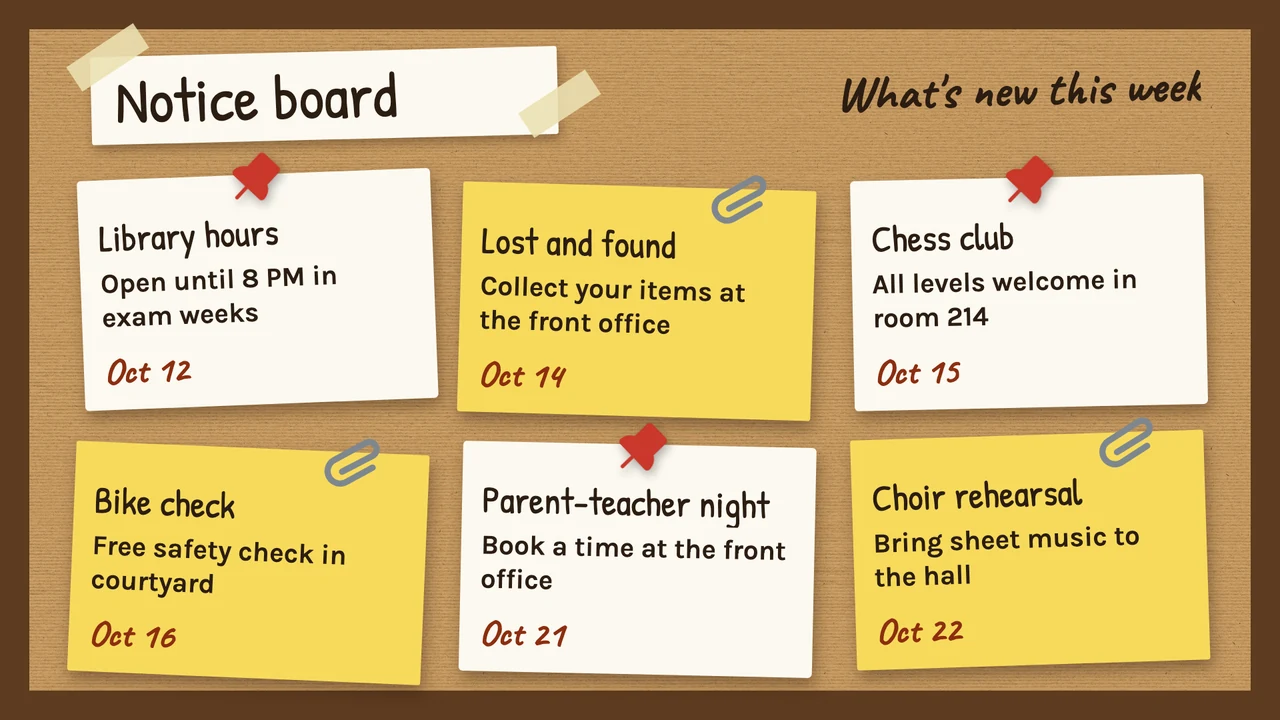
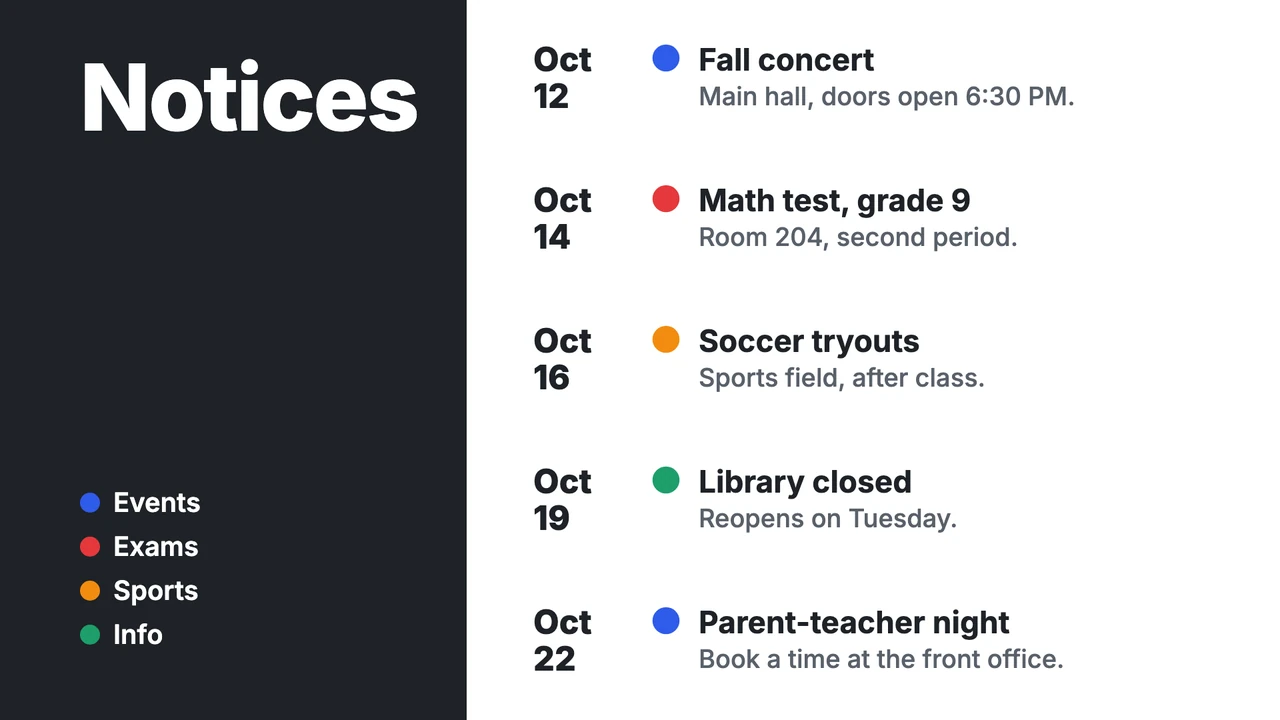
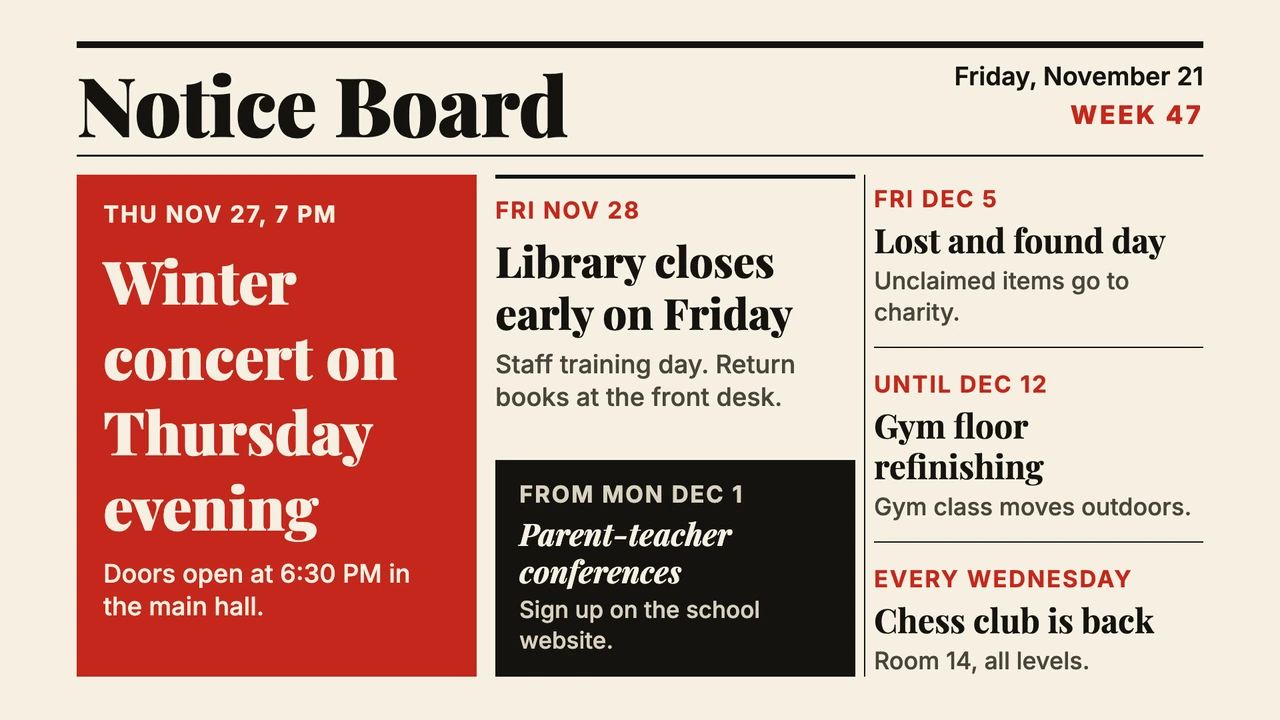
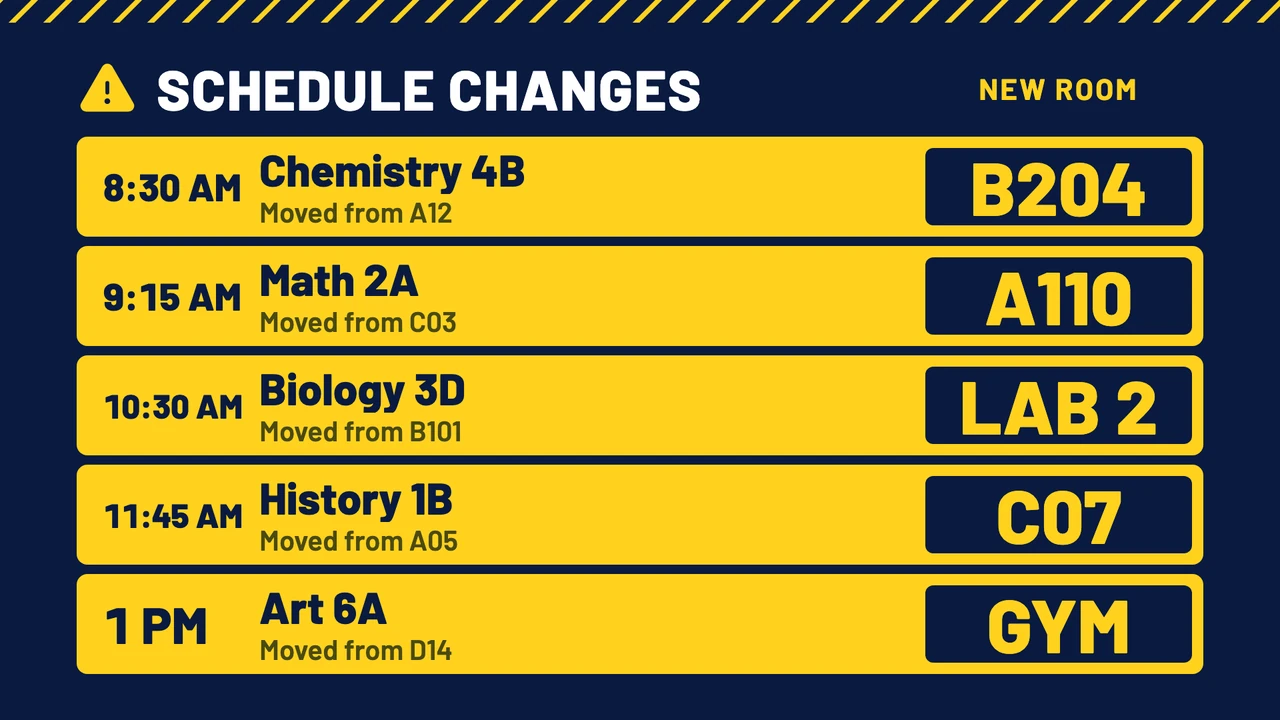
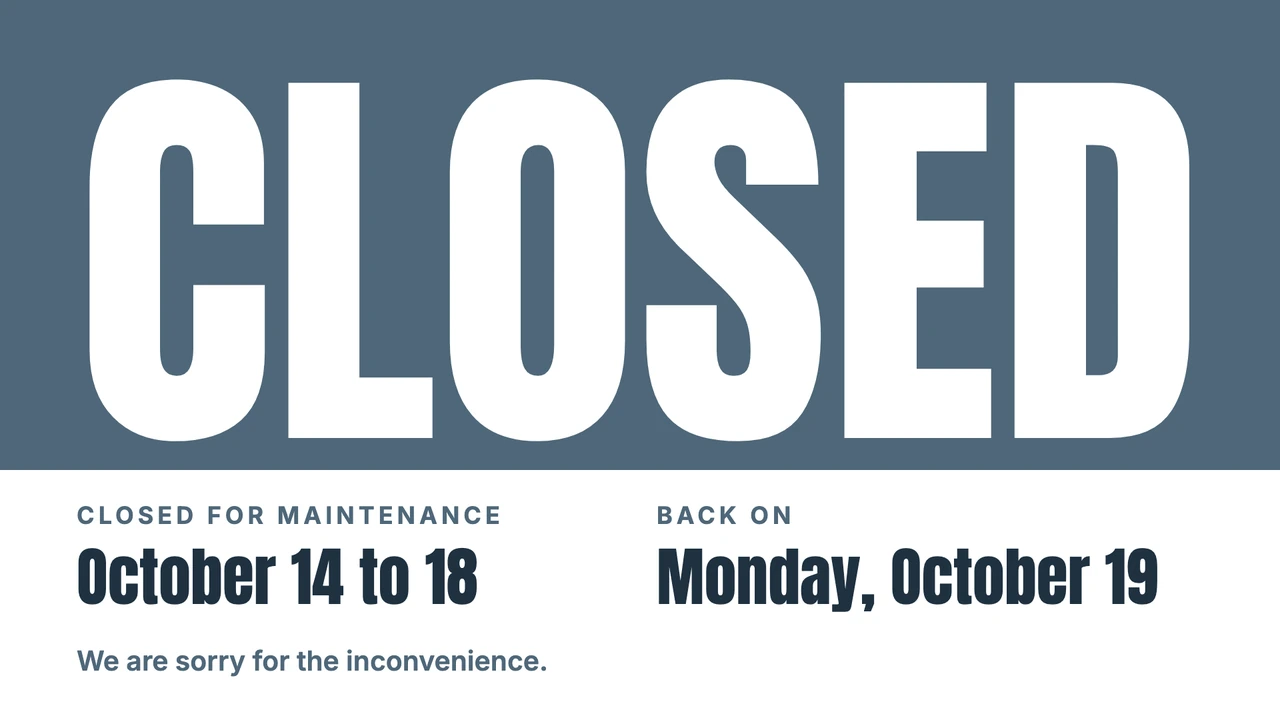
- This week's events, with the day and time first.
- Room and schedule changes for the day, in big type.
- A closure or an early finish that ends on a set date.
- House rules and the lost and found reminder.
Waiting room screen examples
People in a waiting room have time to read, but they read from a chair a few meters away. The examples that work greet visitors, give the practical facts first (opening hours, Wi-Fi, a hygiene reminder) and then rotate in something useful to read, such as a health tip. Two or three slides in a playlist keep the screen from looking frozen.
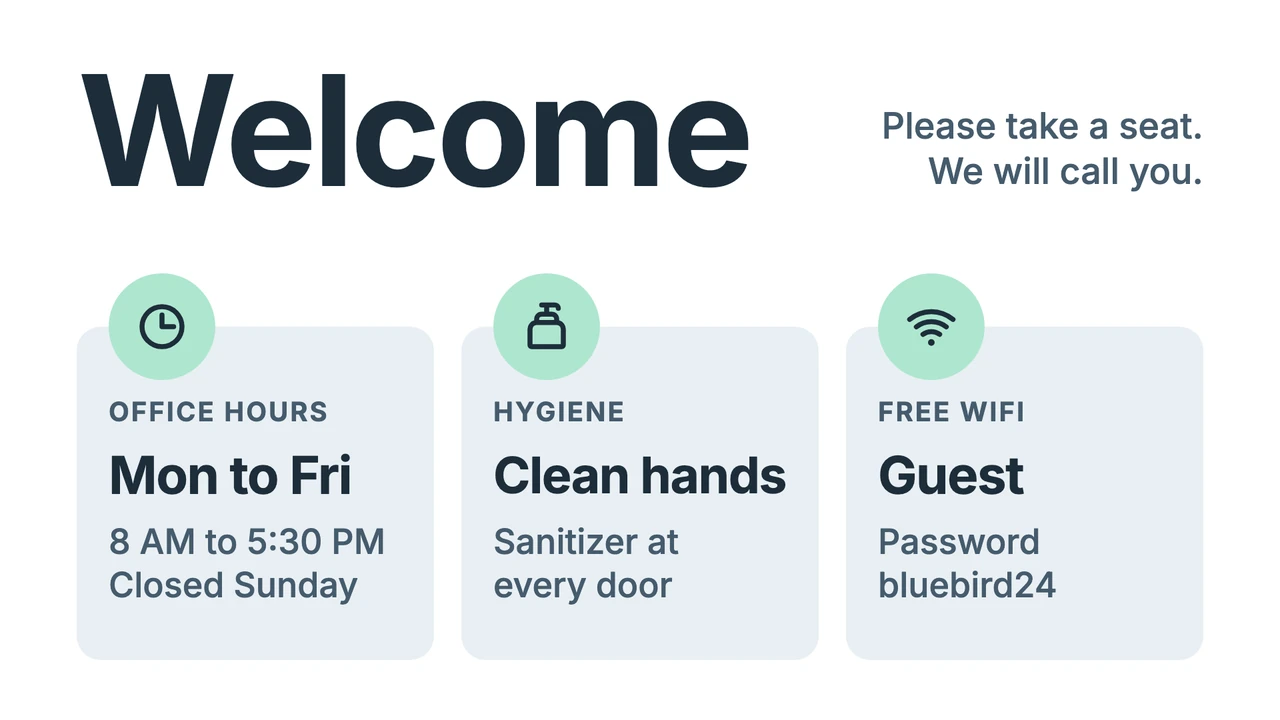
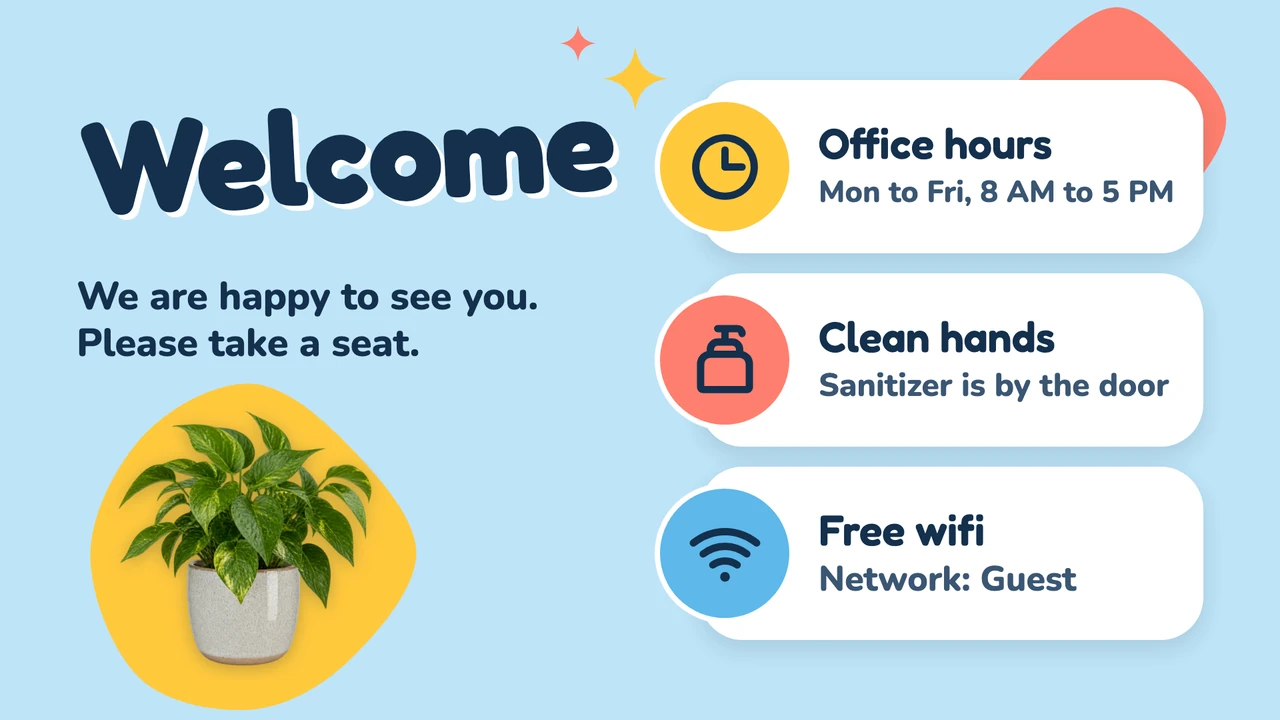
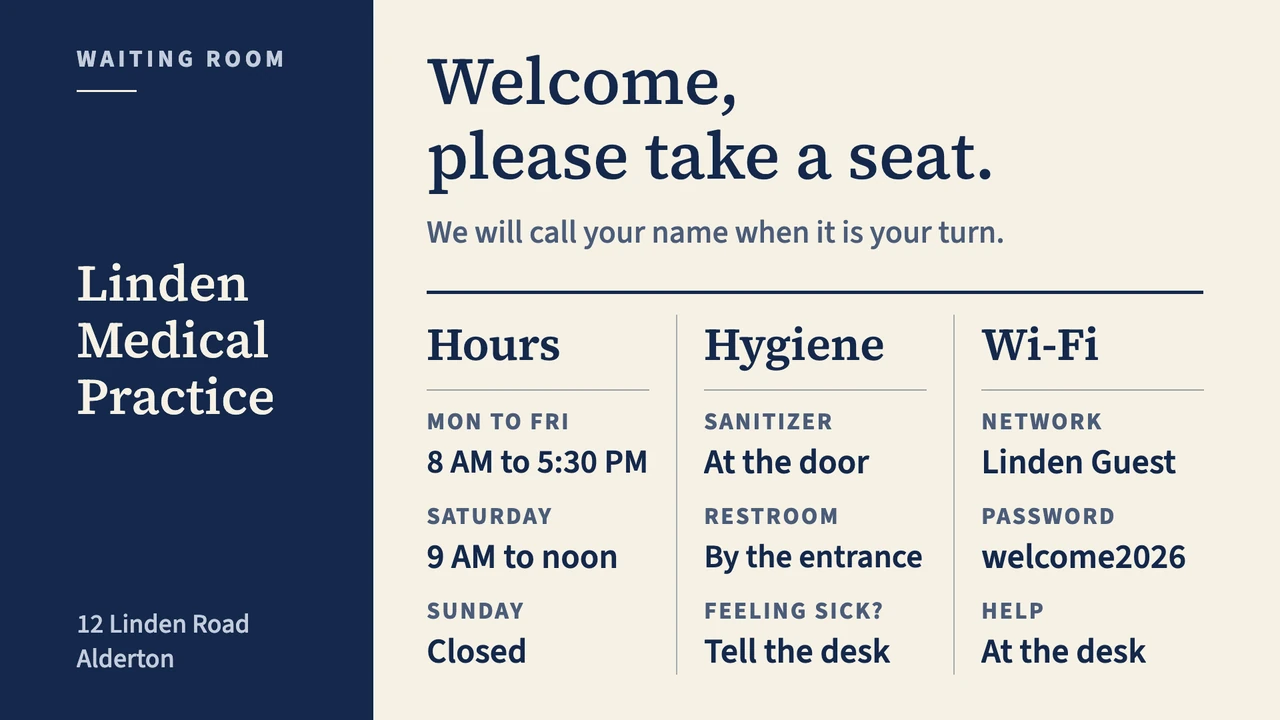
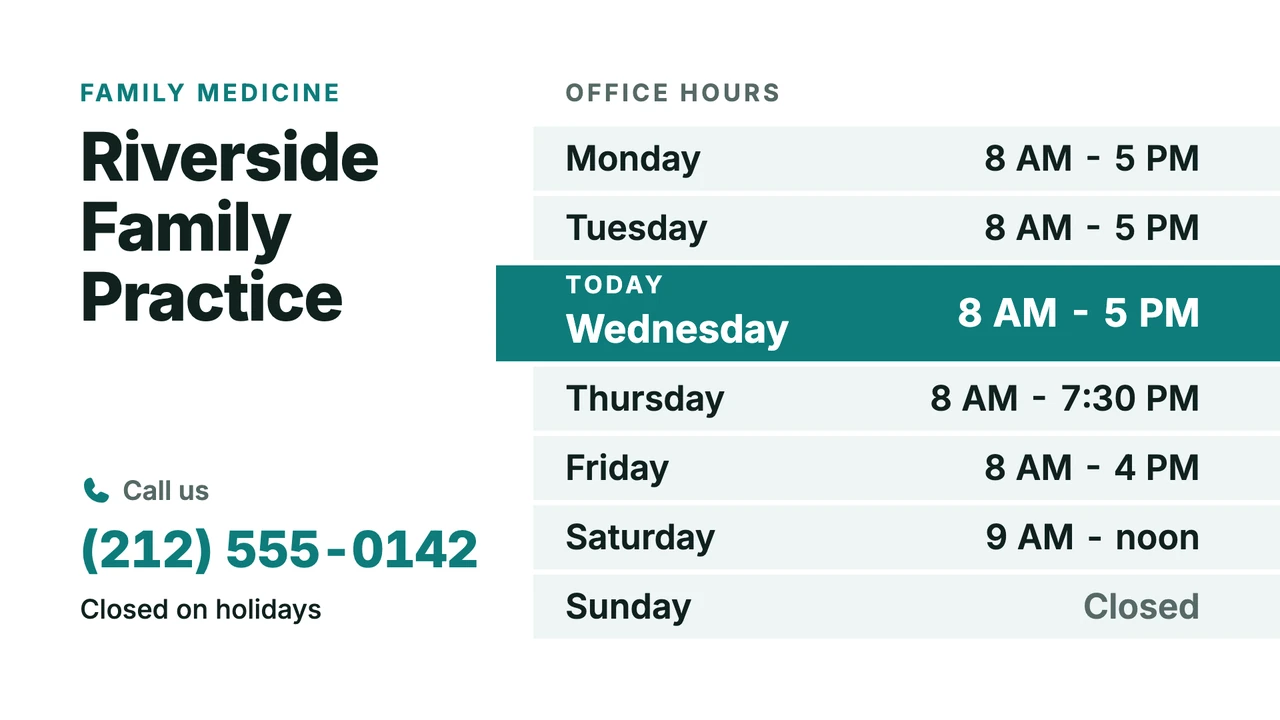
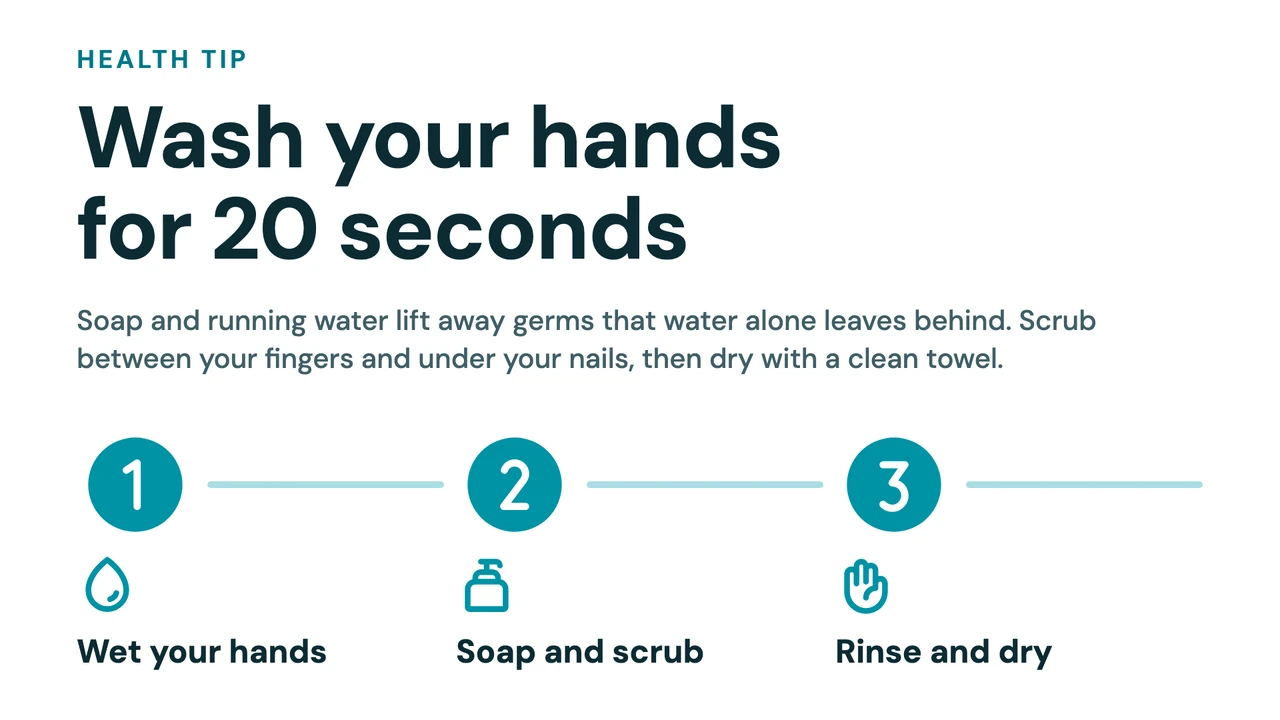
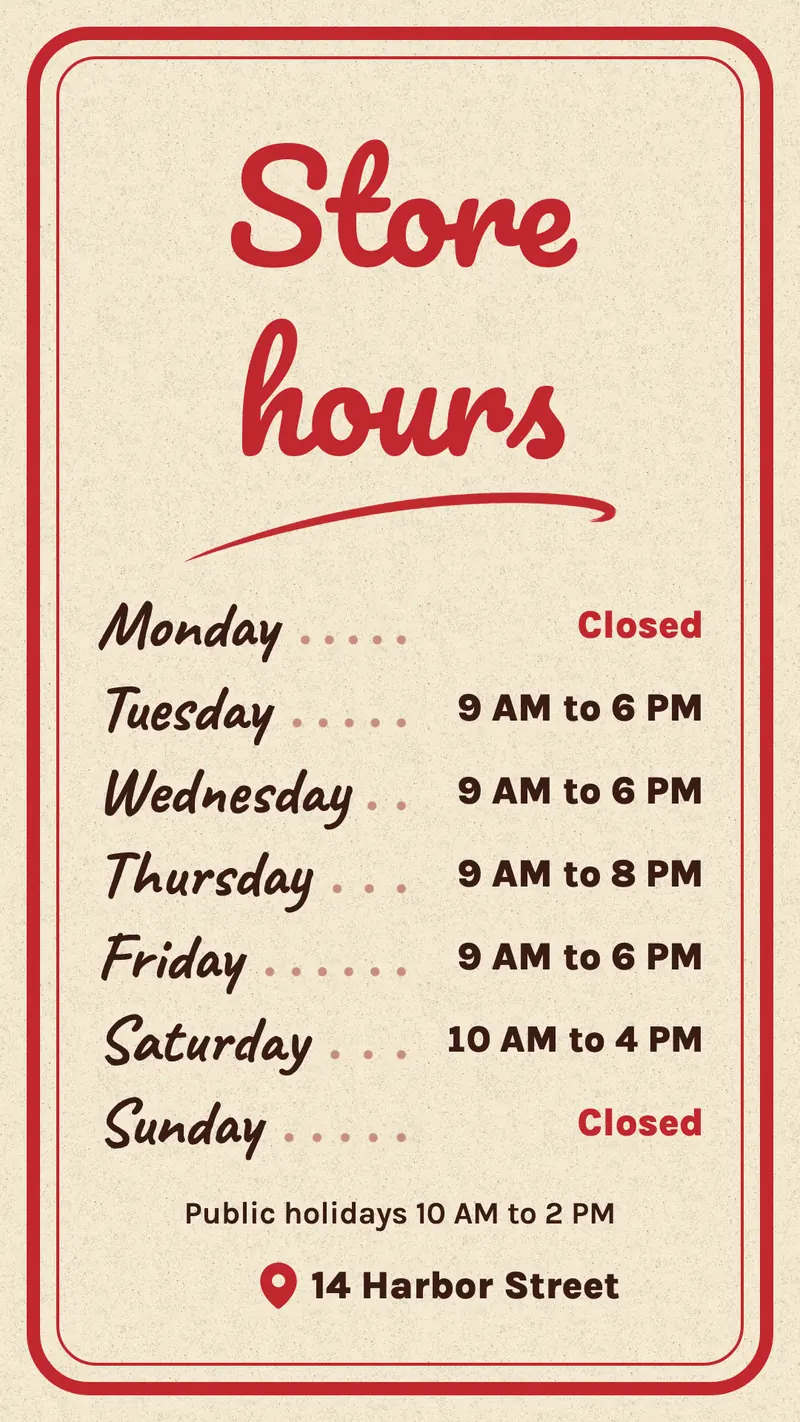
- Opening hours, with today's hours highlighted.
- Guest Wi-Fi name and password.
- A health tip of the week, or a reminder for the season.
- An introduction to a doctor, therapist or specialist.
Welcome screen, hotel and apartment building examples
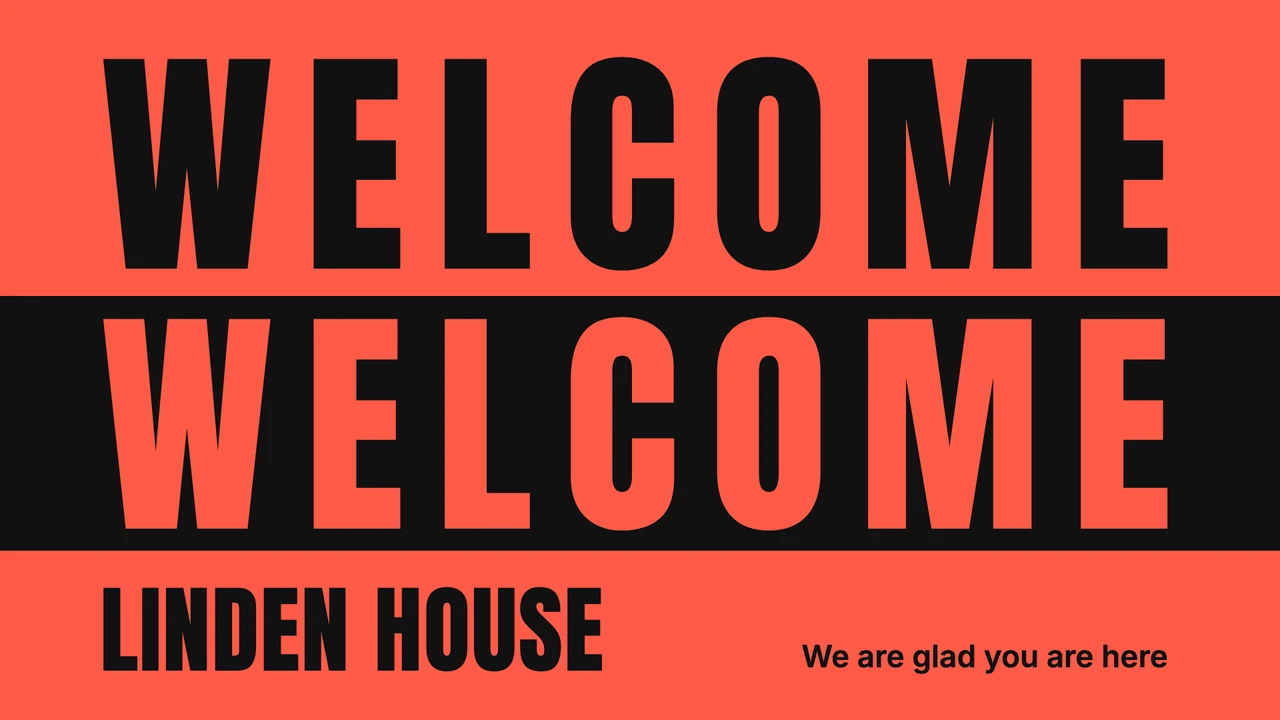
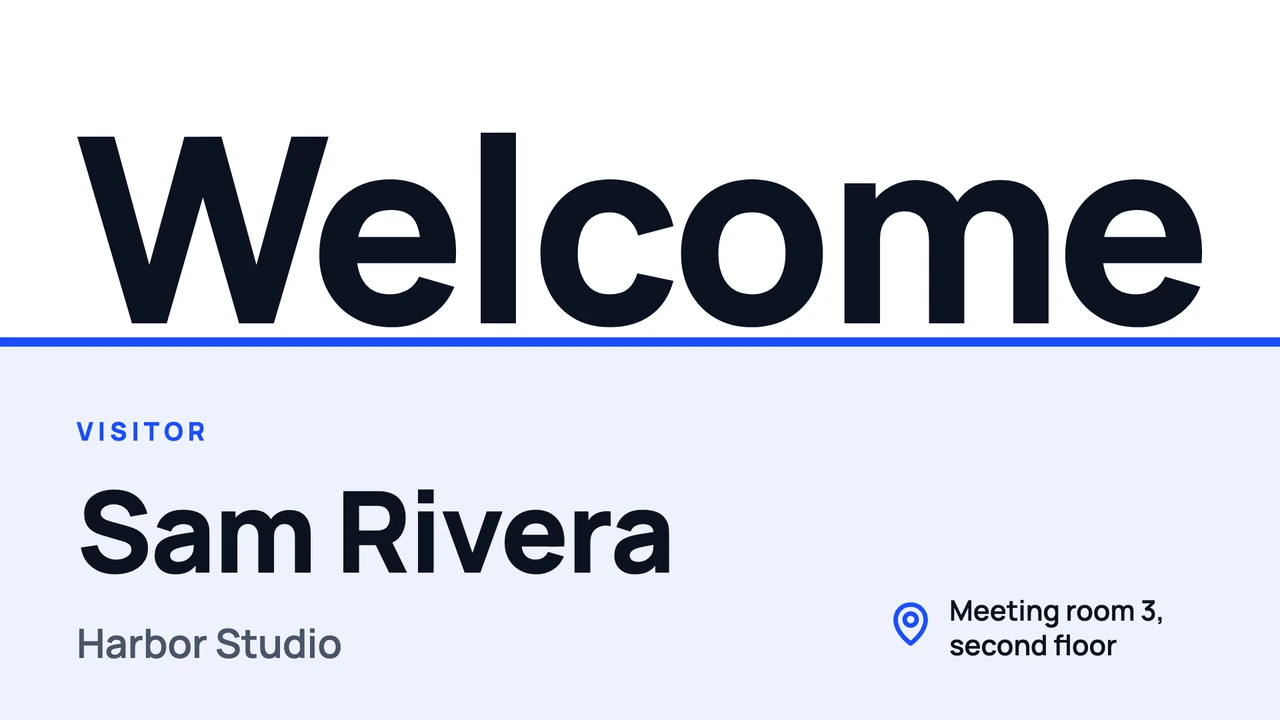
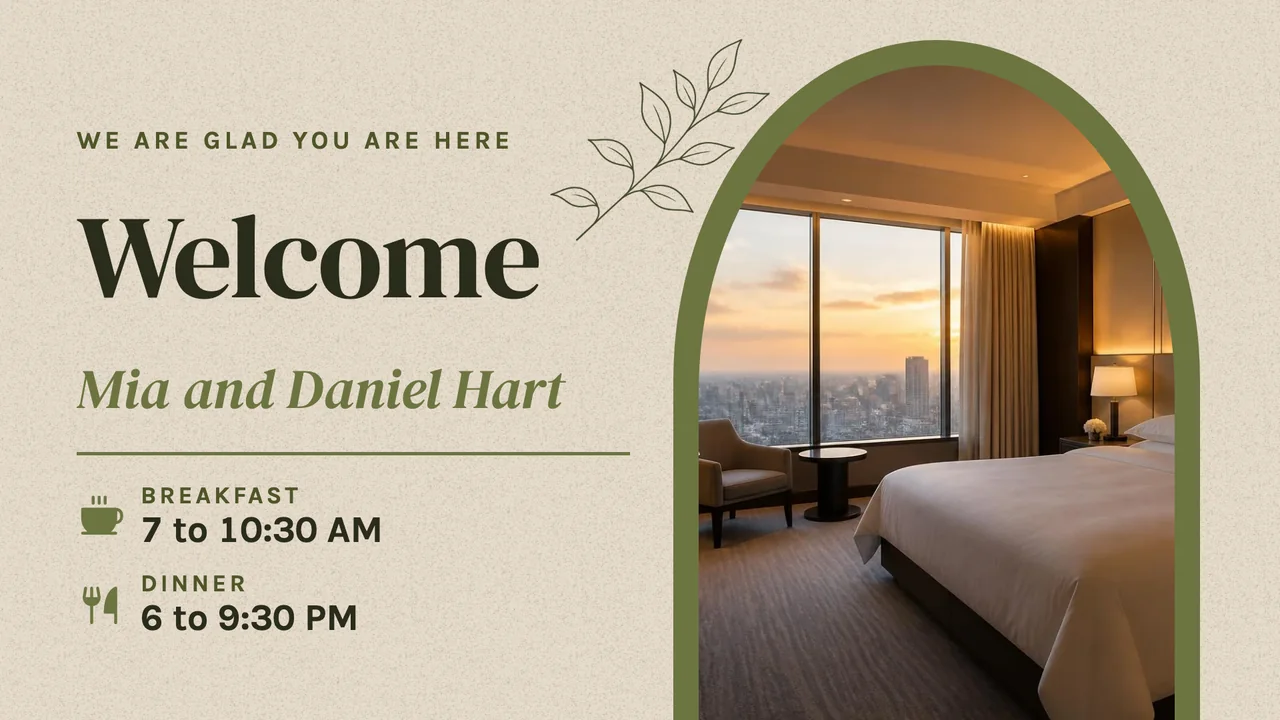
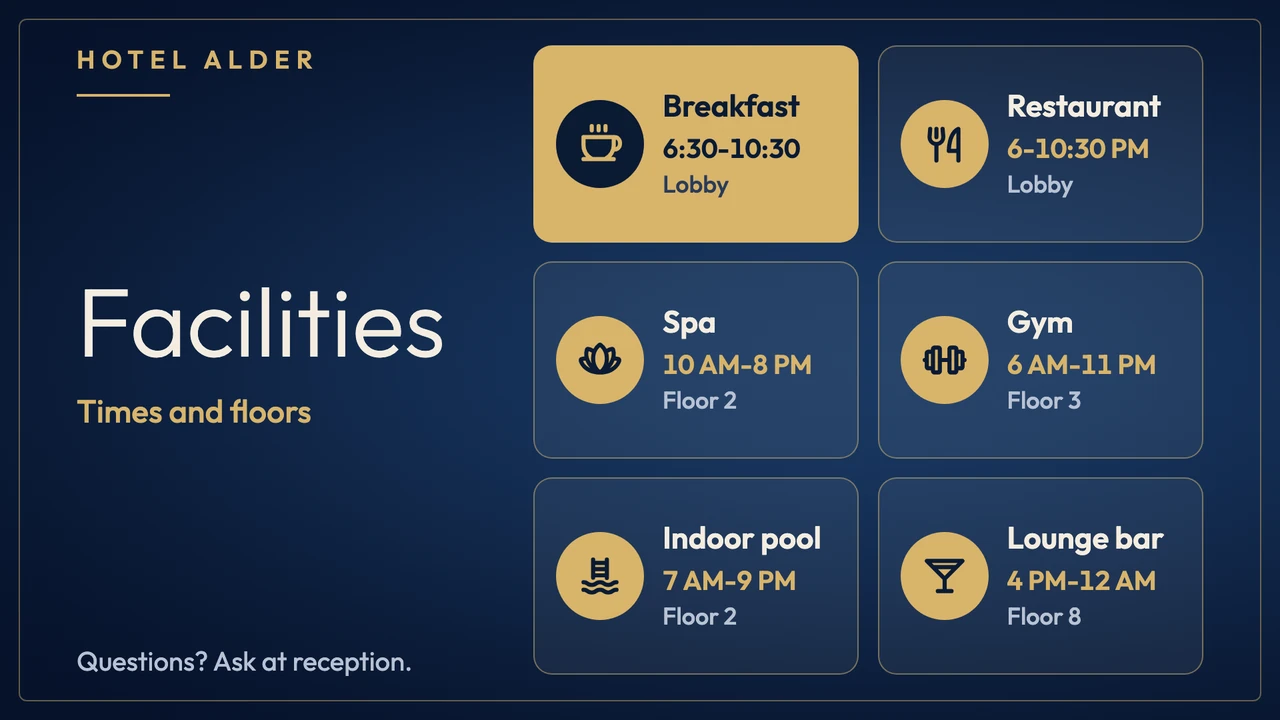
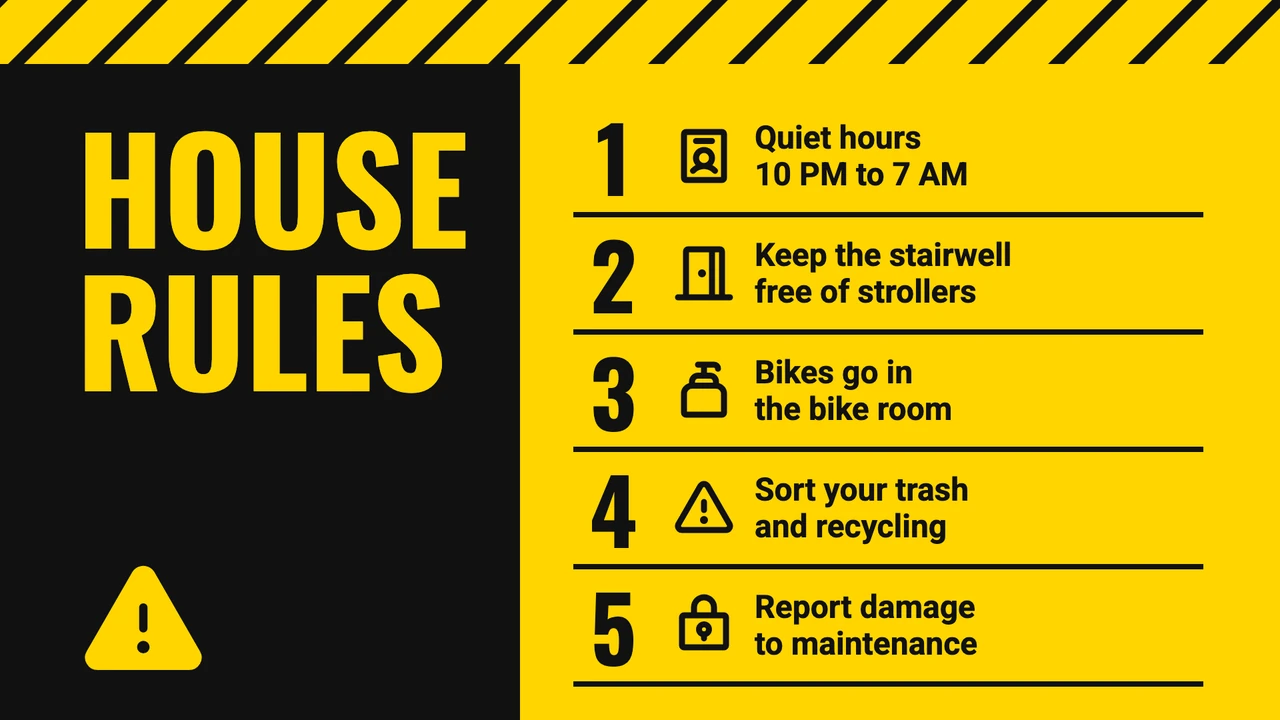
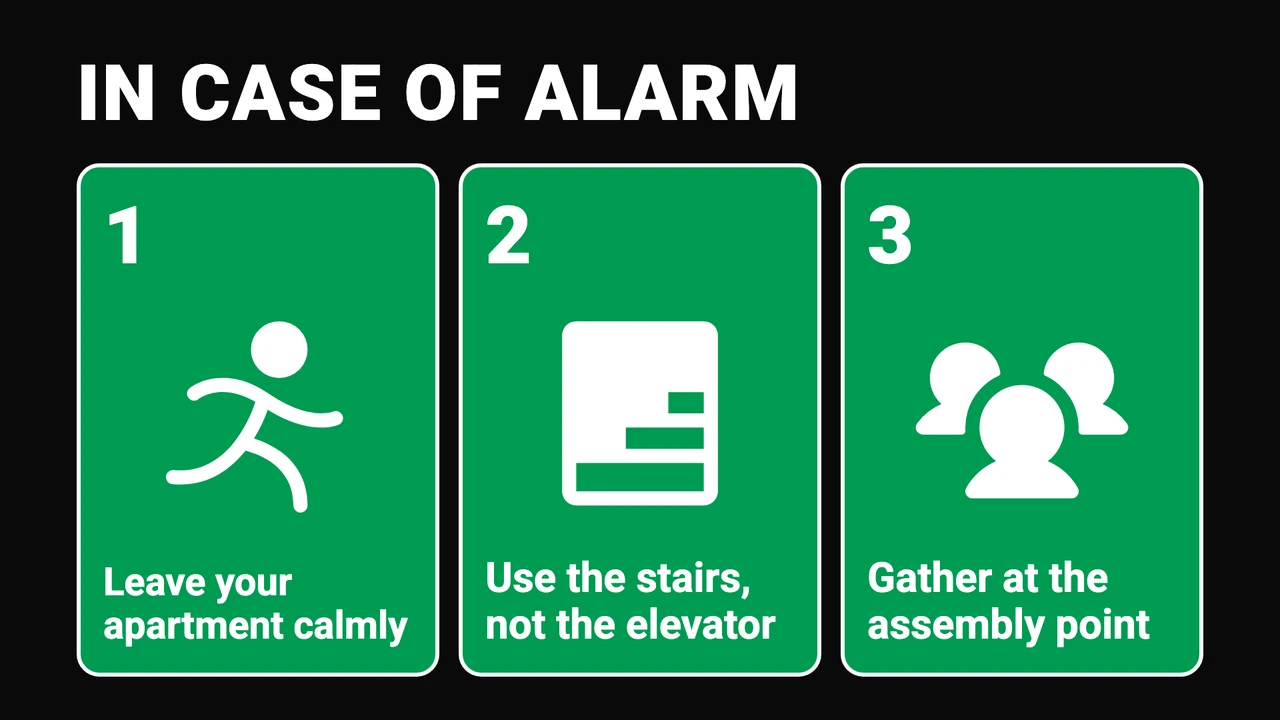
A welcome screen has one job: make the visitor feel expected. The examples that work put a large greeting first, then a single line of practical information, such as the Wi-Fi, the meeting room or the breakfast hours. In a hotel the same screen carries facilities and times; in an apartment building it carries house rules and what to do in an alarm, in the same large type. This is a supplement to the fire-safety signs the rules require, not a replacement for them.
Hotel information screen
Welcome, breakfast and restaurant hours, spa and pool times, and where to find them.
Apartment building screen
House rules, notices for residents and evacuation steps in the lobby or by the elevator.
In-store promotion examples
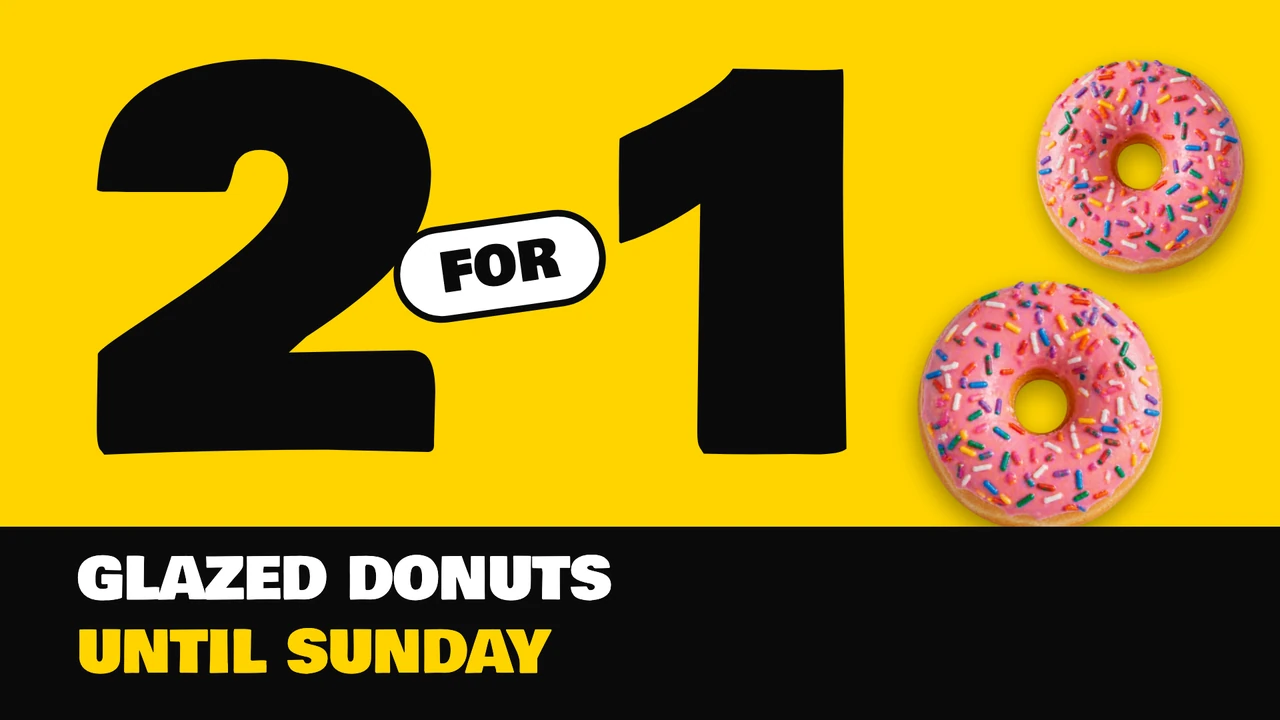
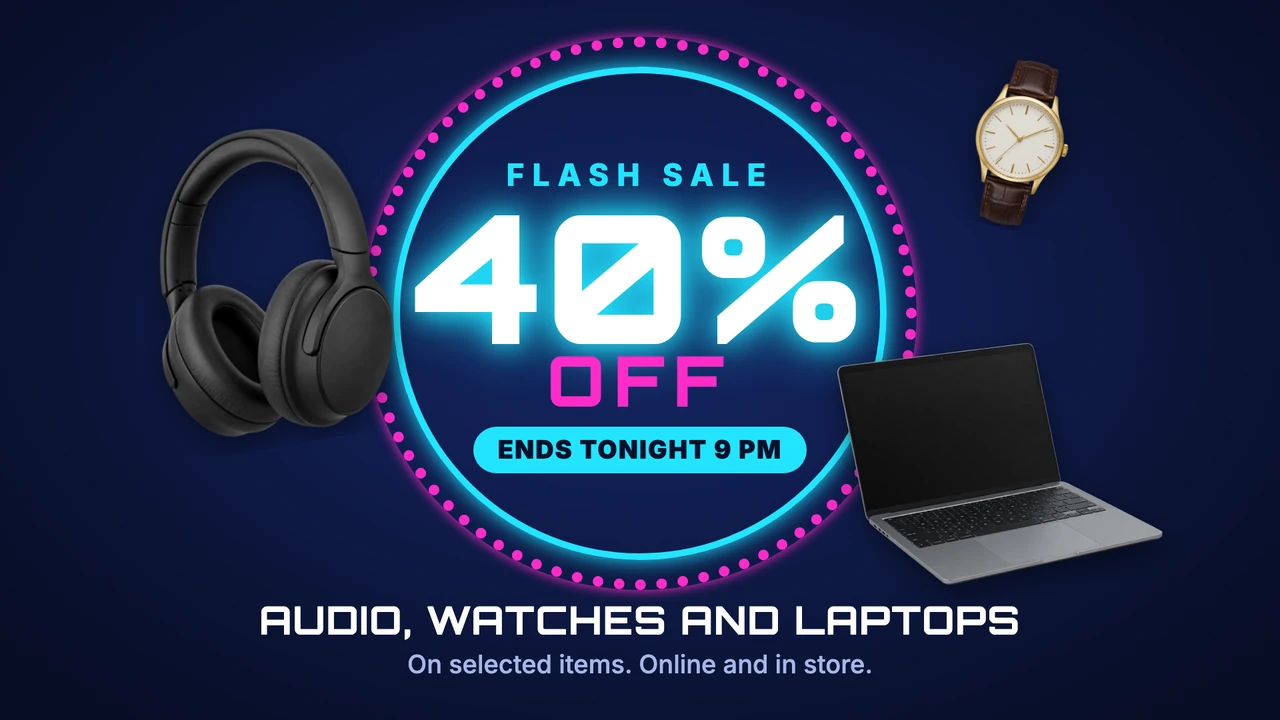
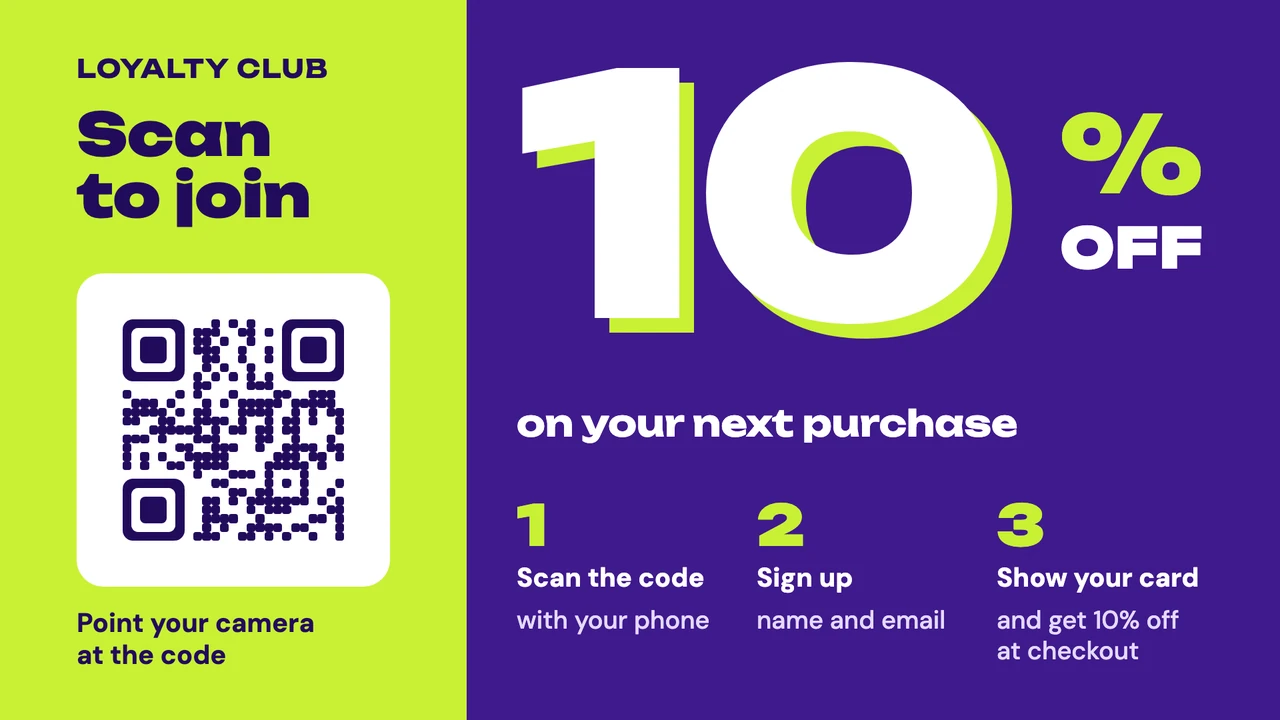
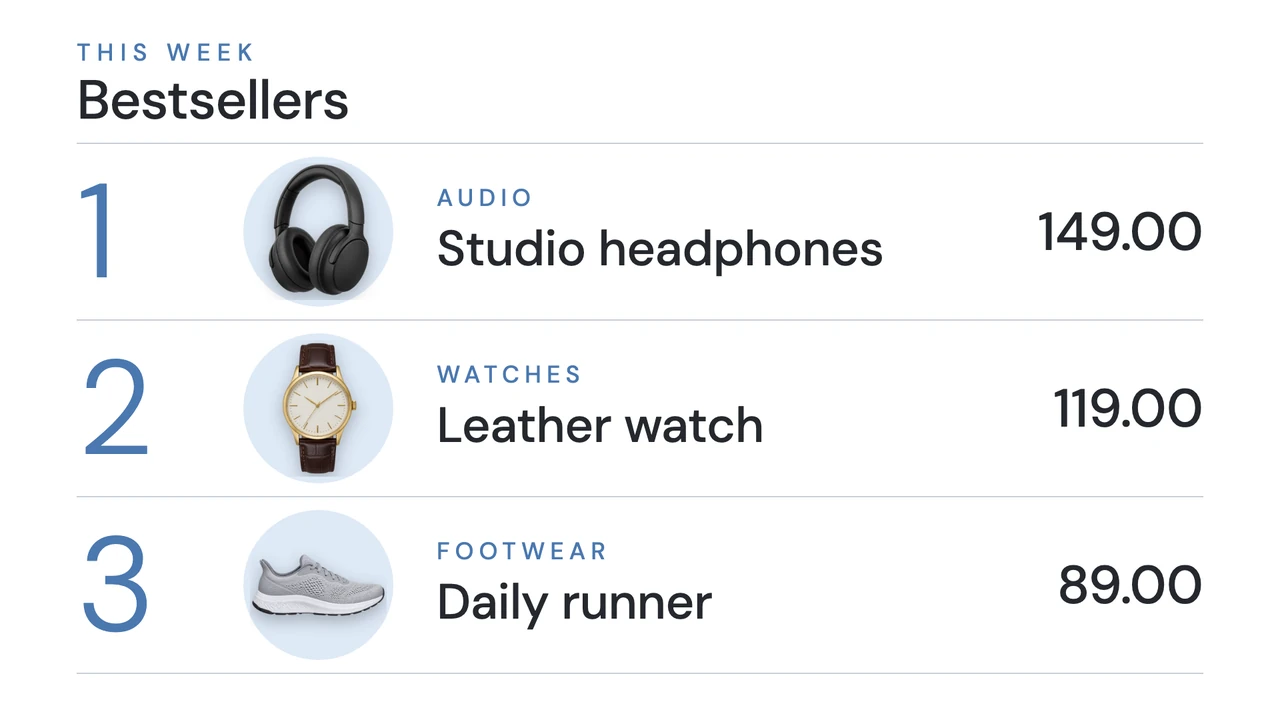
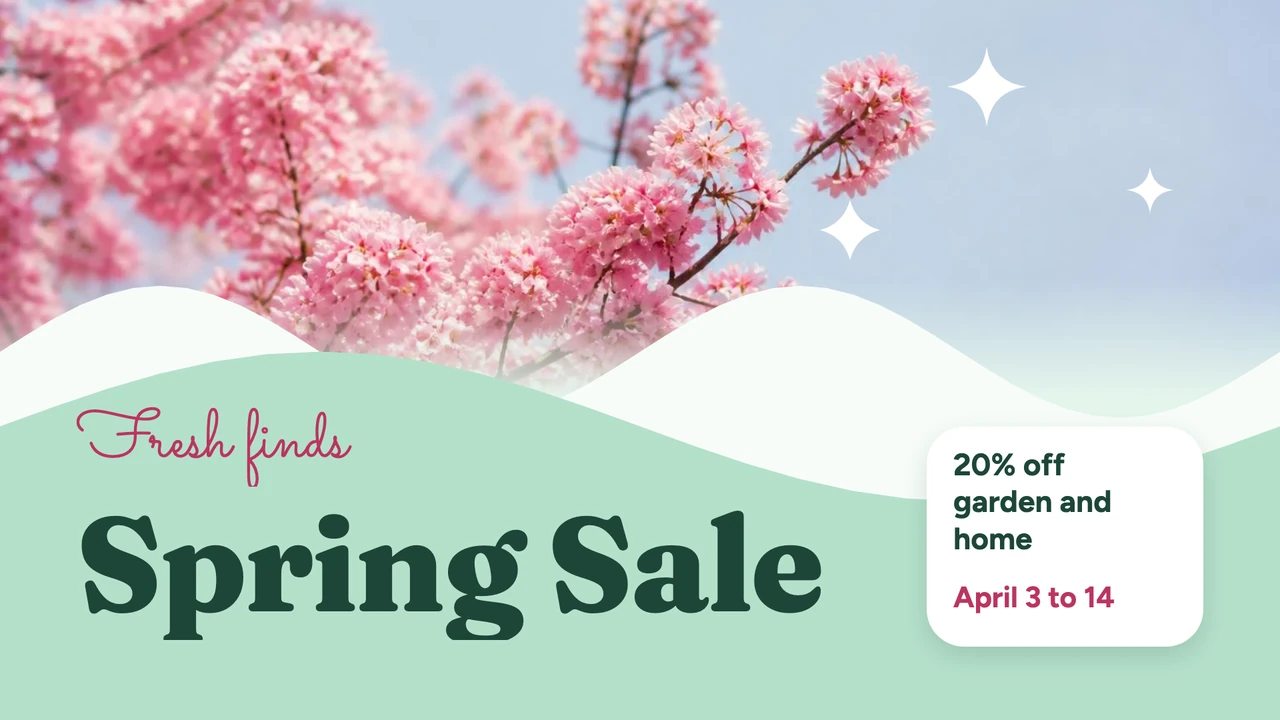
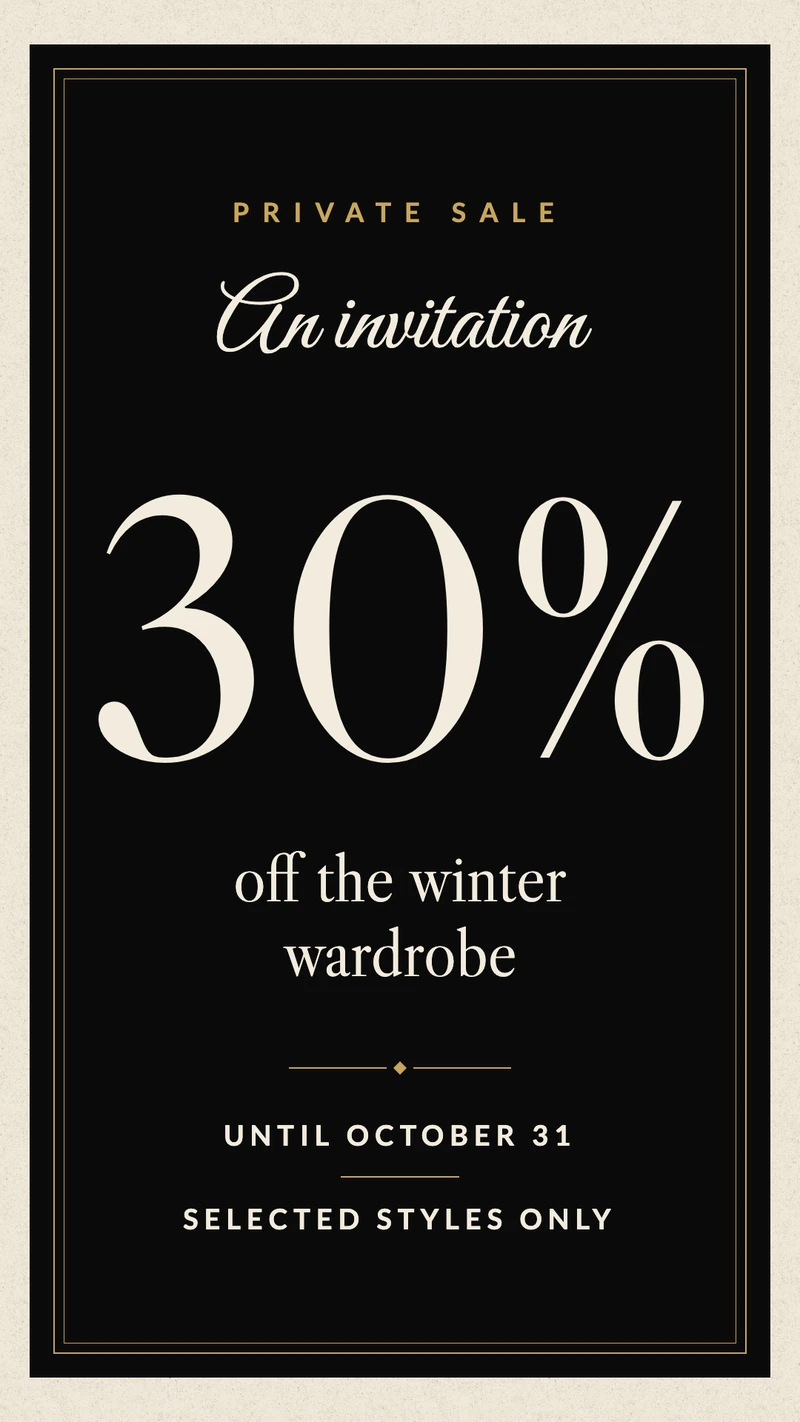
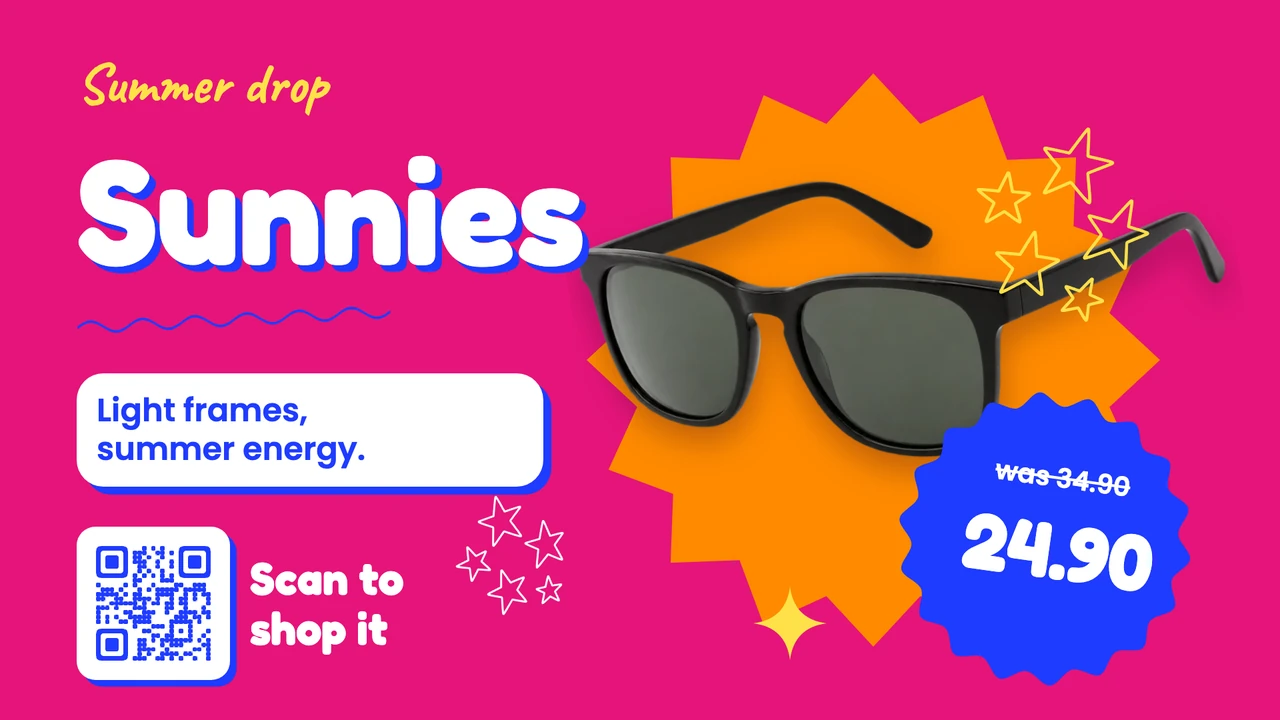
Promotion screens work when the offer is the biggest thing on them. The examples that work lead with the deal itself (2 for 1, a percentage, a price), state when it ends and, where it helps, offer a QR code so the shopper can follow up. Rotate two or three offers in a playlist, and use a schedule or an end date so a deal never stays on the screen after it expires.
Replace the sample QR code
Where an example has a QR code, it is a sample. Delete it and add your own with the QR tool in the Designer, then scan it with a phone from where a shopper will stand before you send the design to the screen.
Shop window display examples
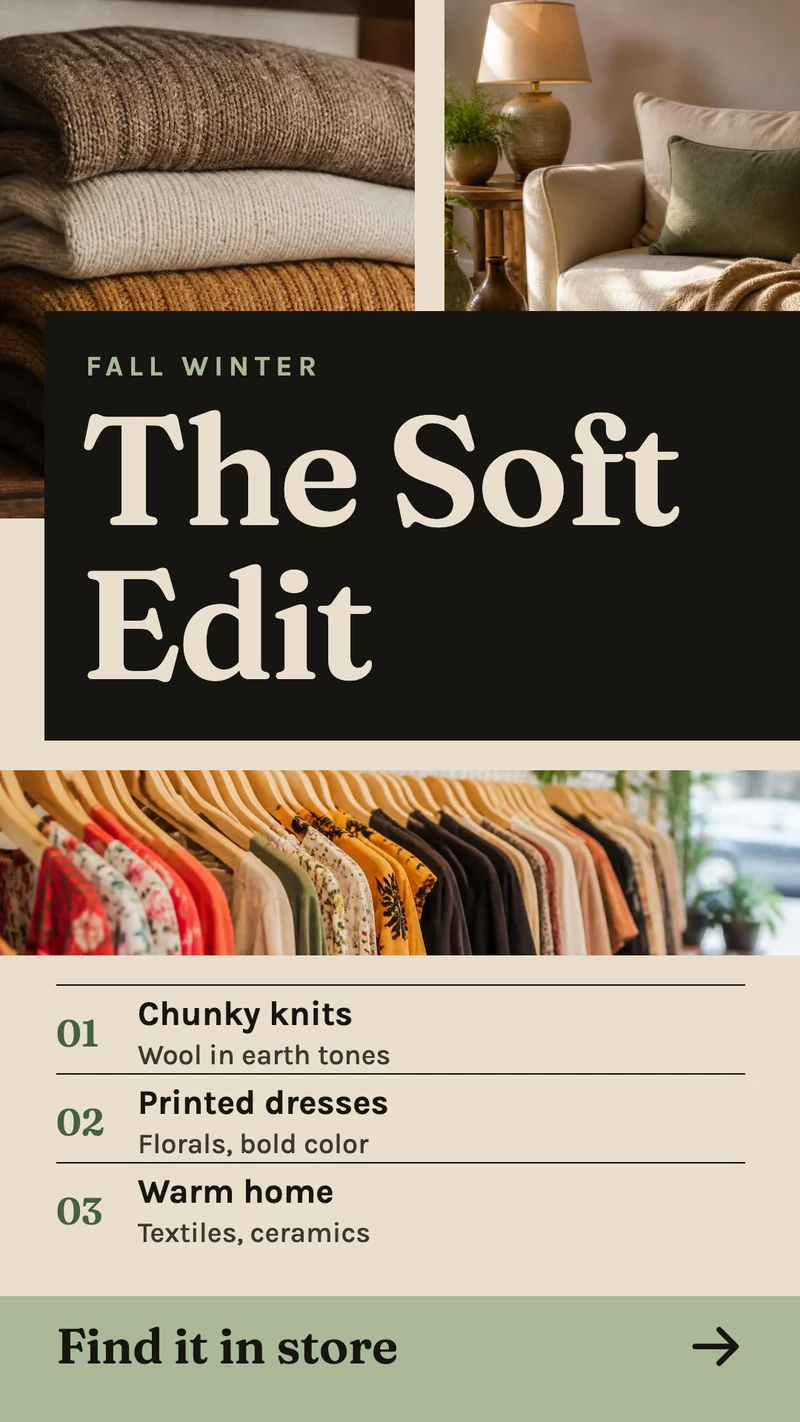
A window screen is seen by people walking past, so it has a second or two to land. The examples that work show one product or one collection with a large picture, the name and a price, and switch to opening hours when the shop is closed. Window screens often hang in portrait, and the portrait examples below suit that; the landscape ones suit a wide screen.


Internal communications and dashboard examples
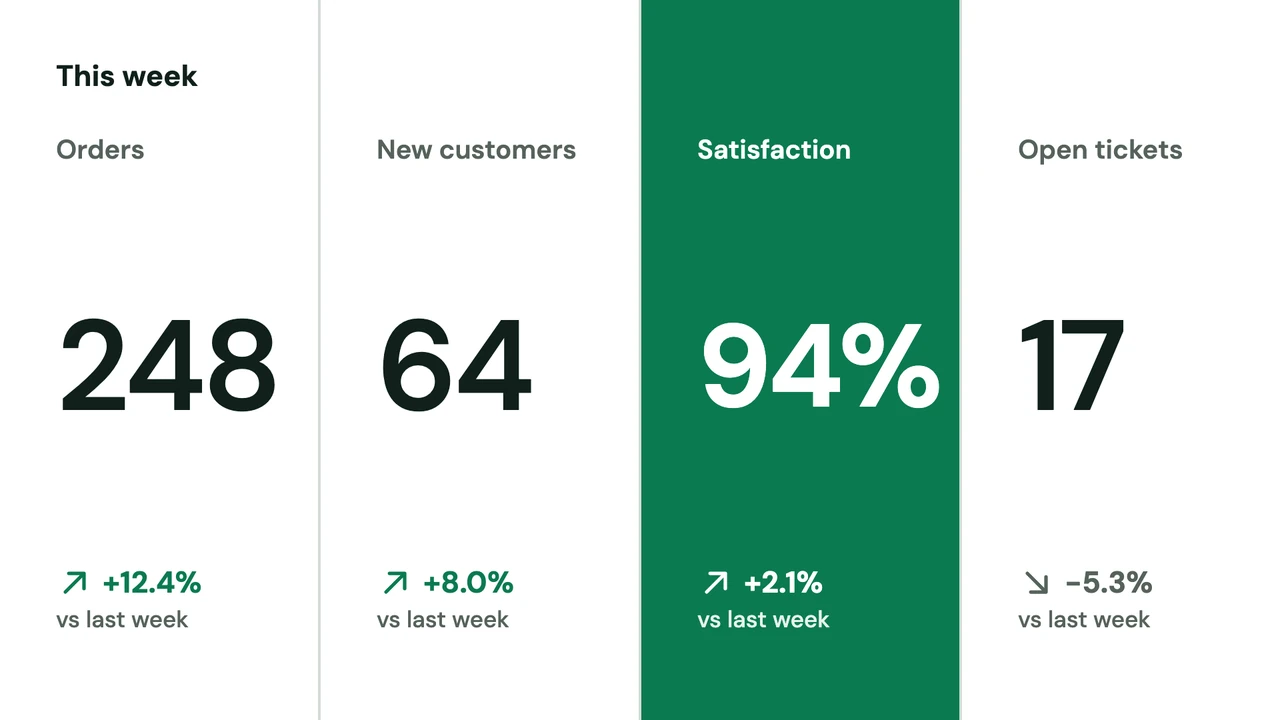
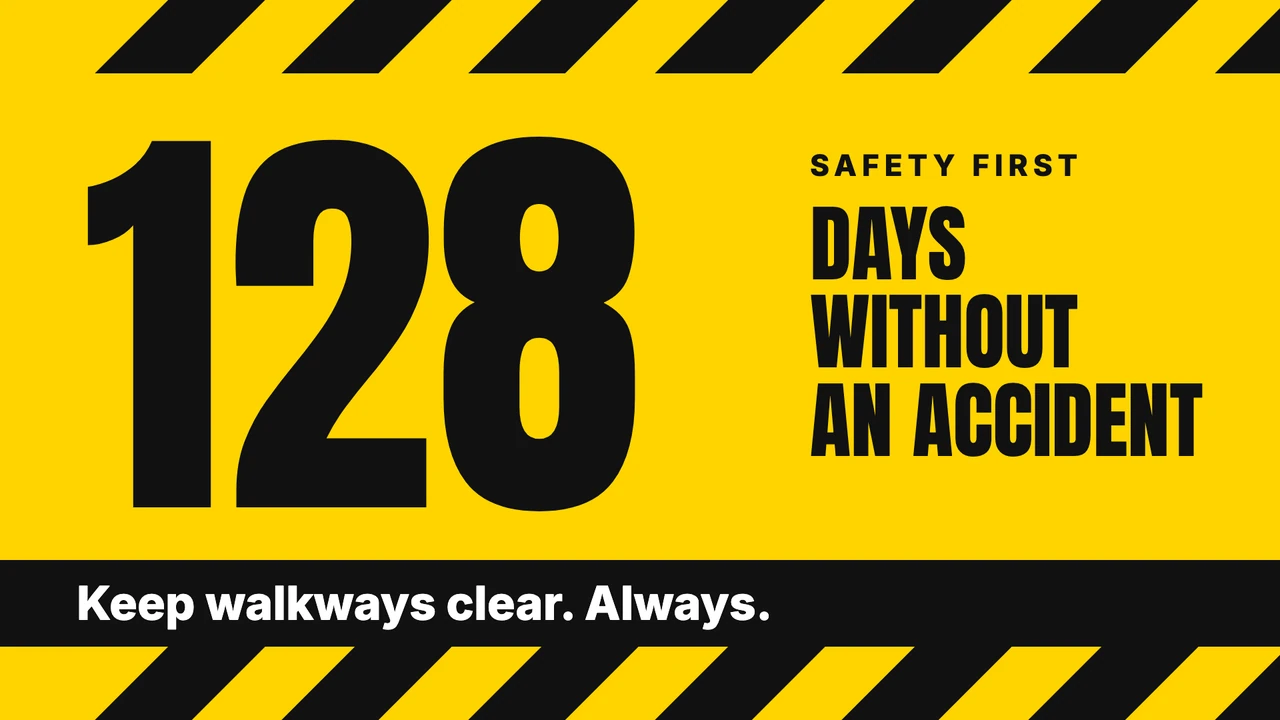
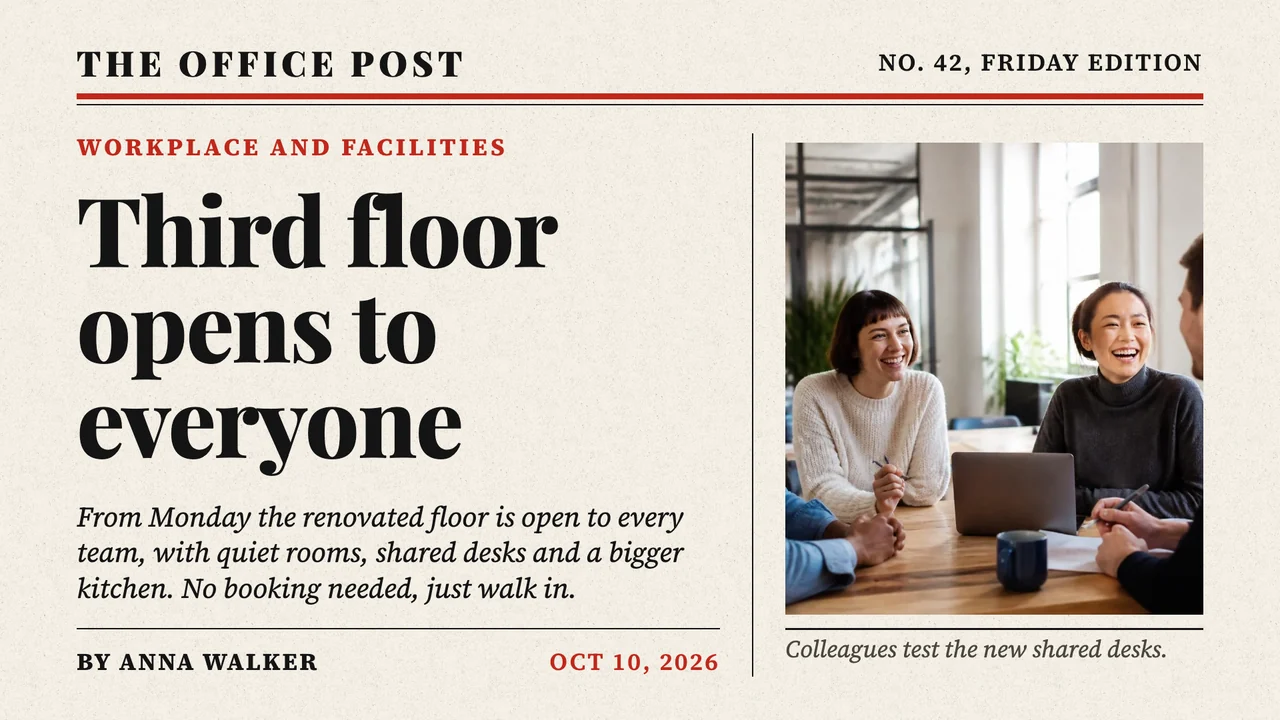
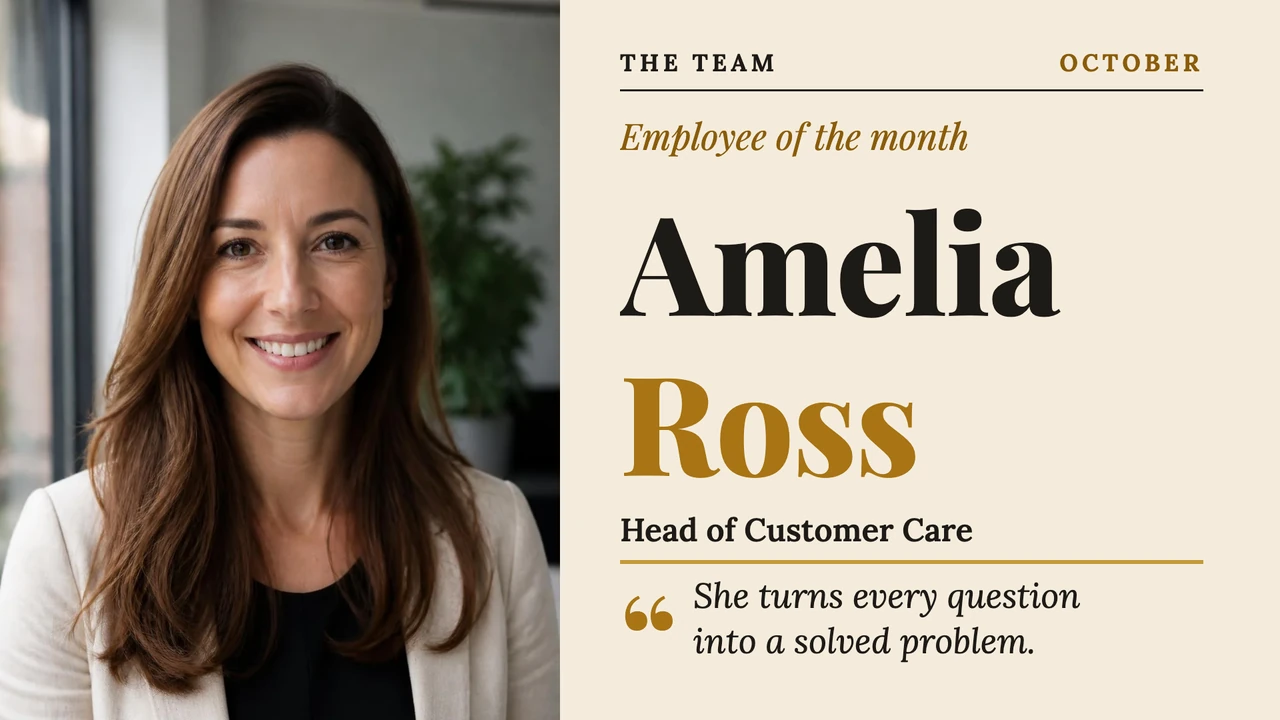
Screens for staff compete with the work in front of them, so the examples that work are glanceable: a few big numbers, one headline, a face and a name. The numbers in these KPI templates are text you type; for figures that update themselves, show a live dashboard or a spreadsheet on the screen instead.
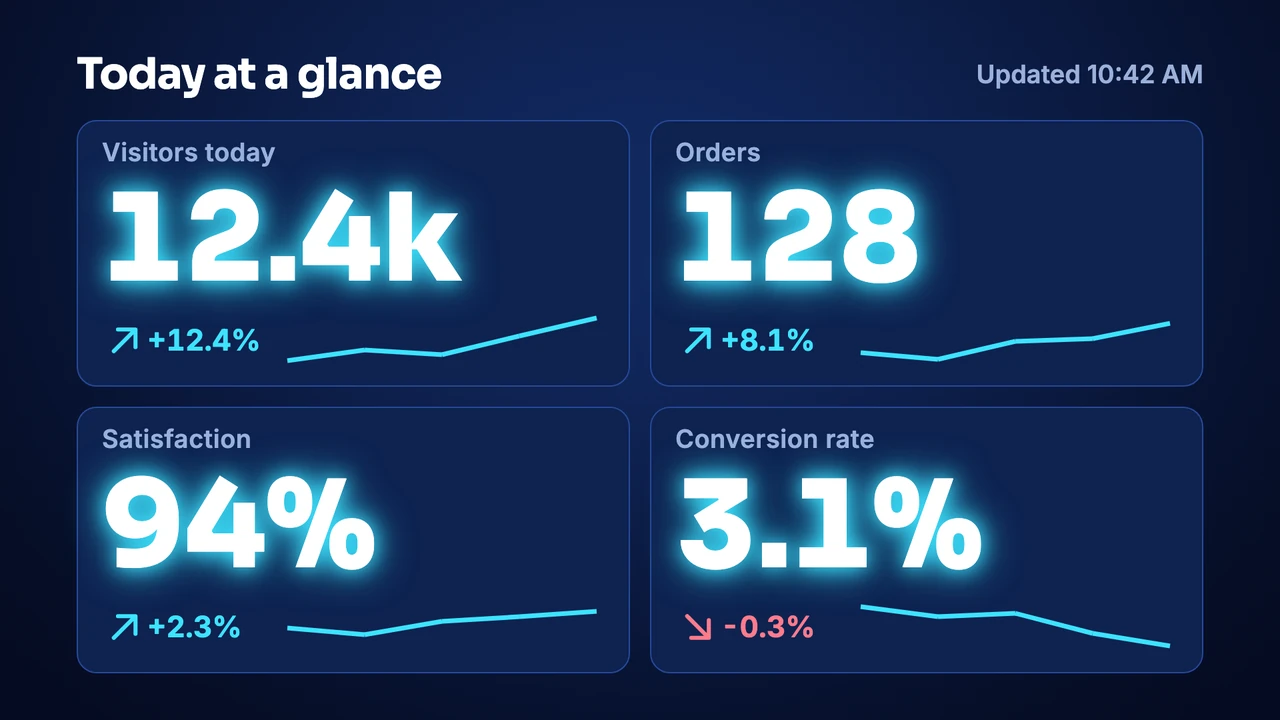
A live dashboard or a report can run on the same screen too.
Directory and wayfinding examples
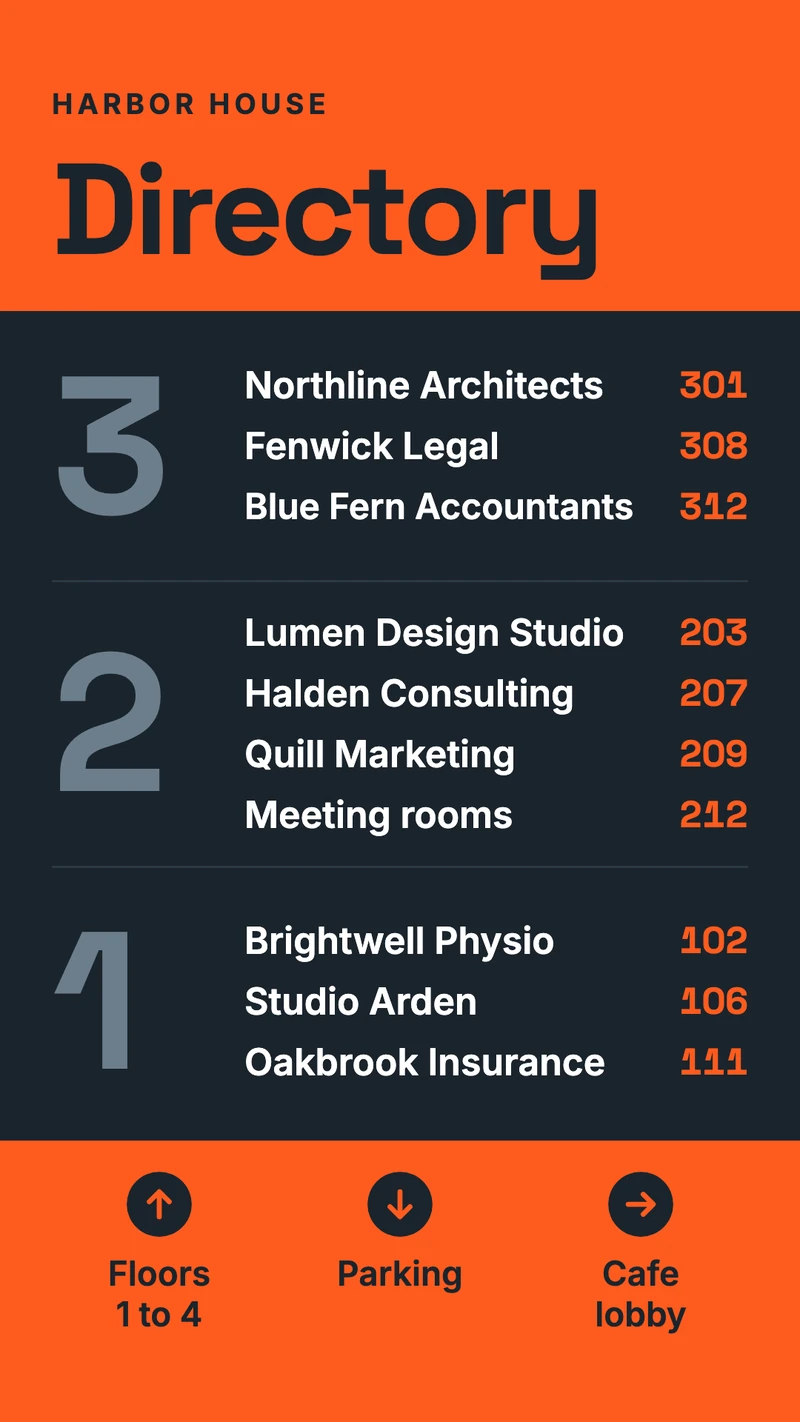
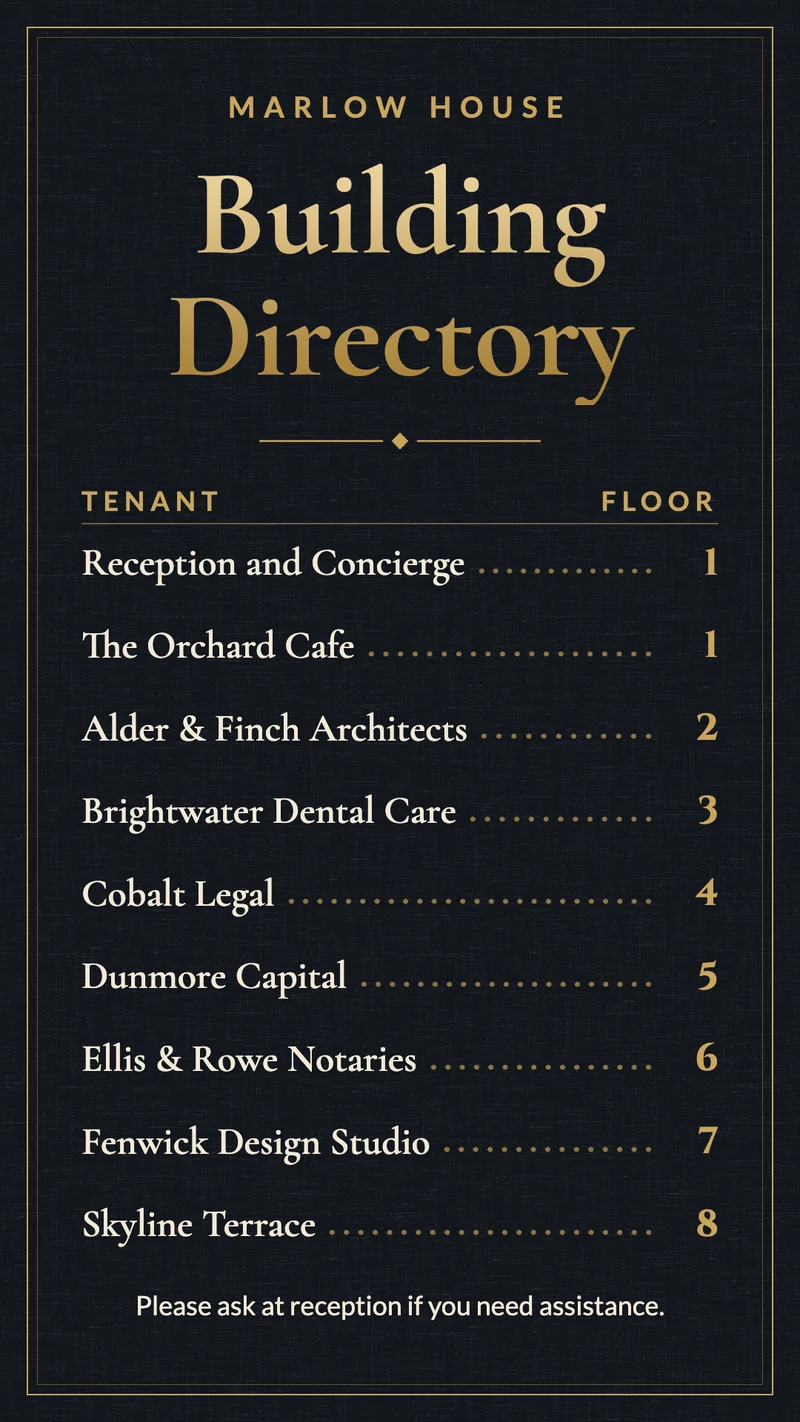
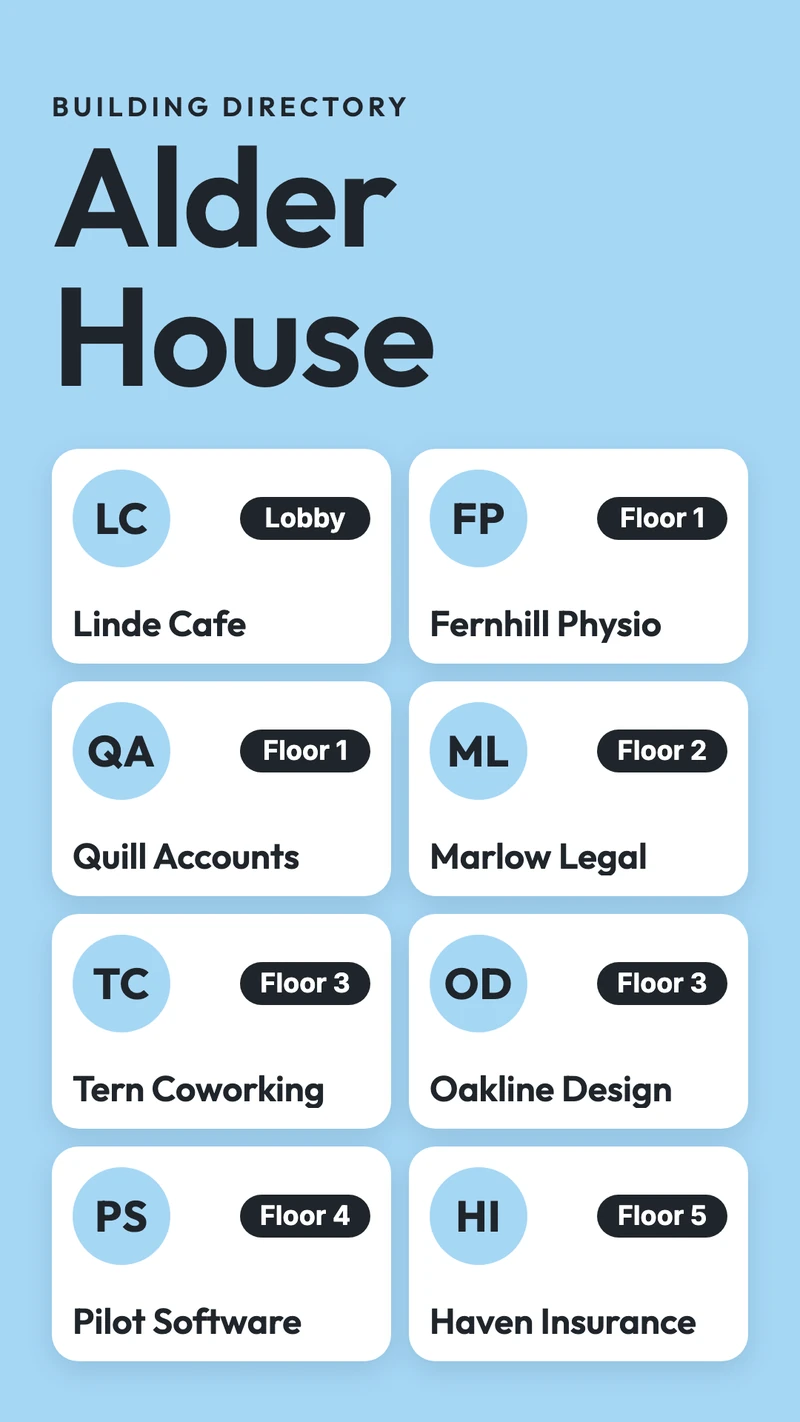
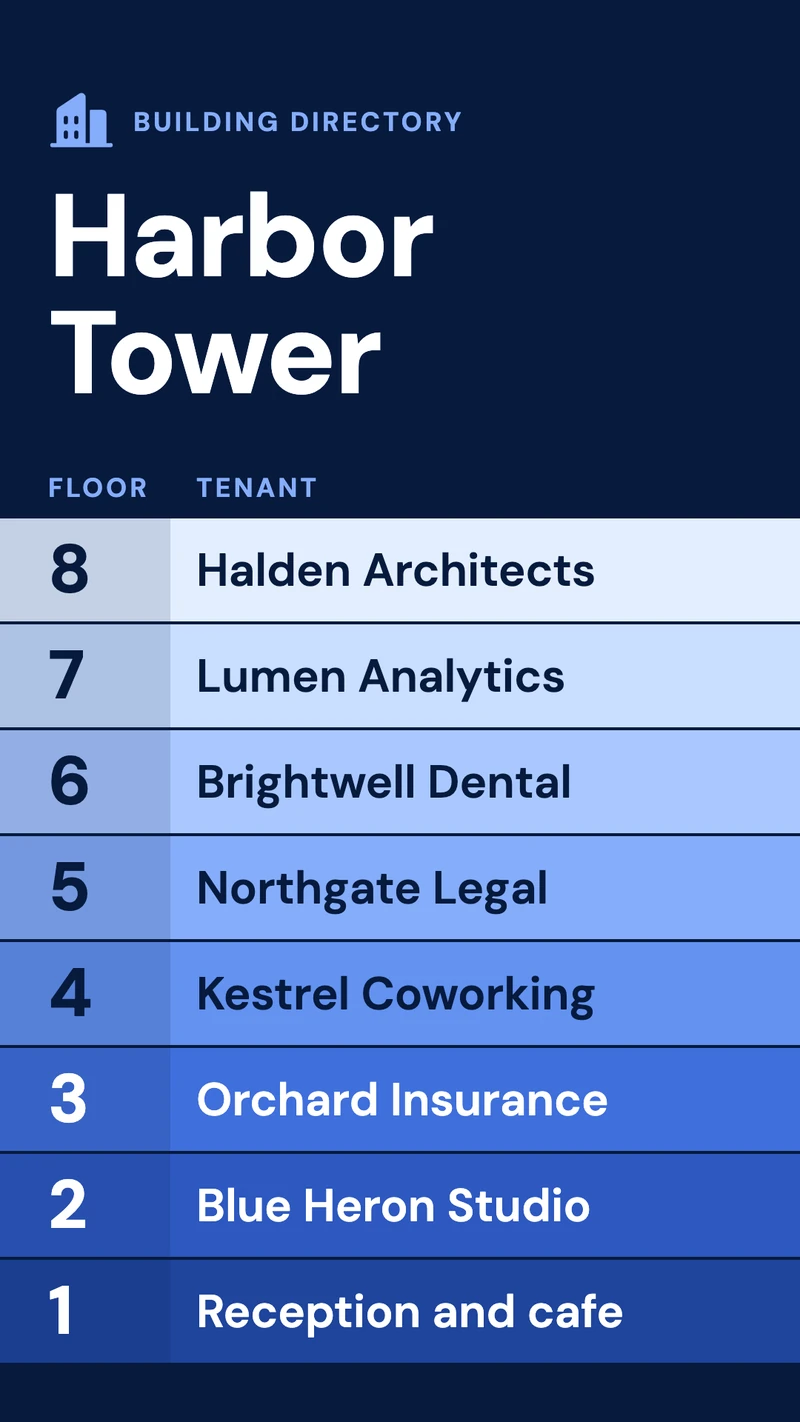
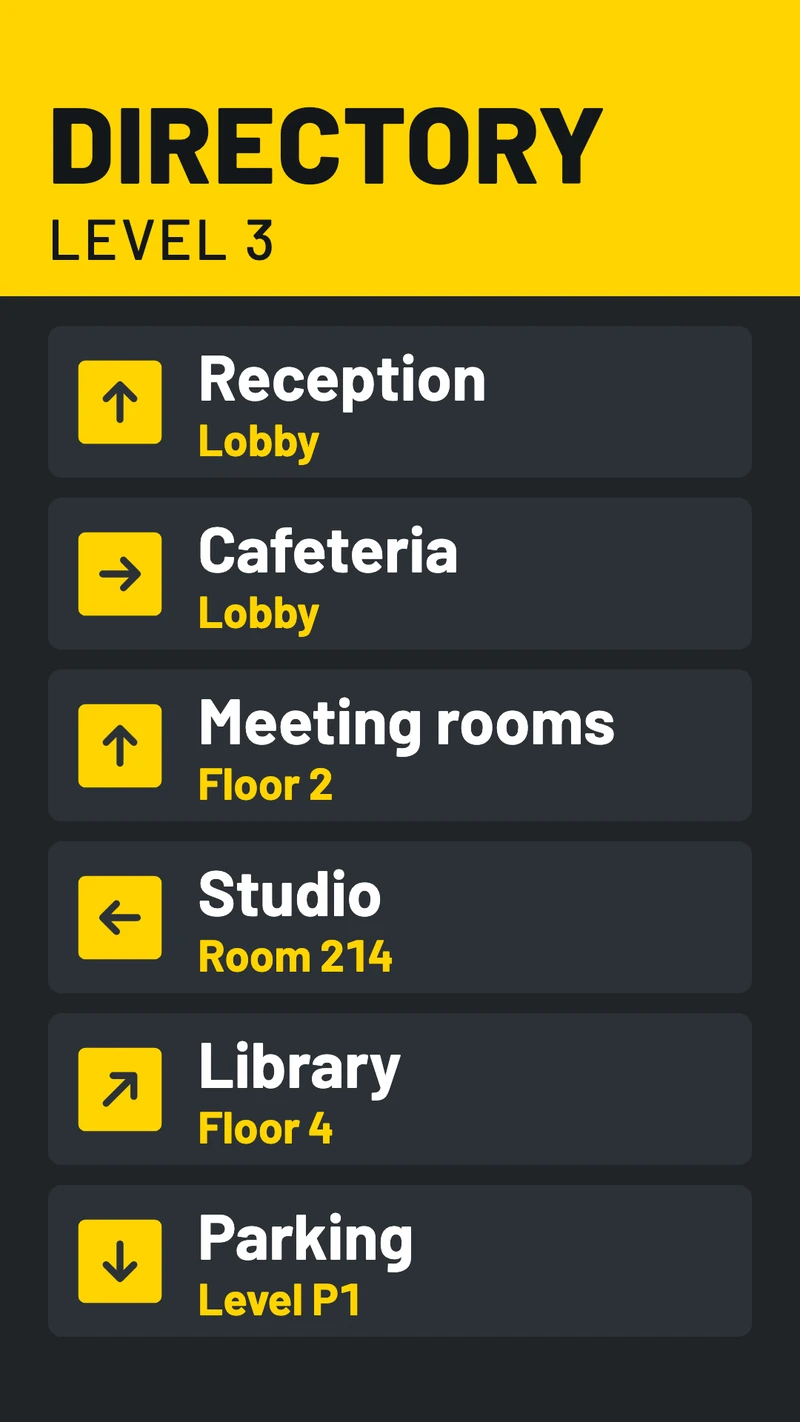
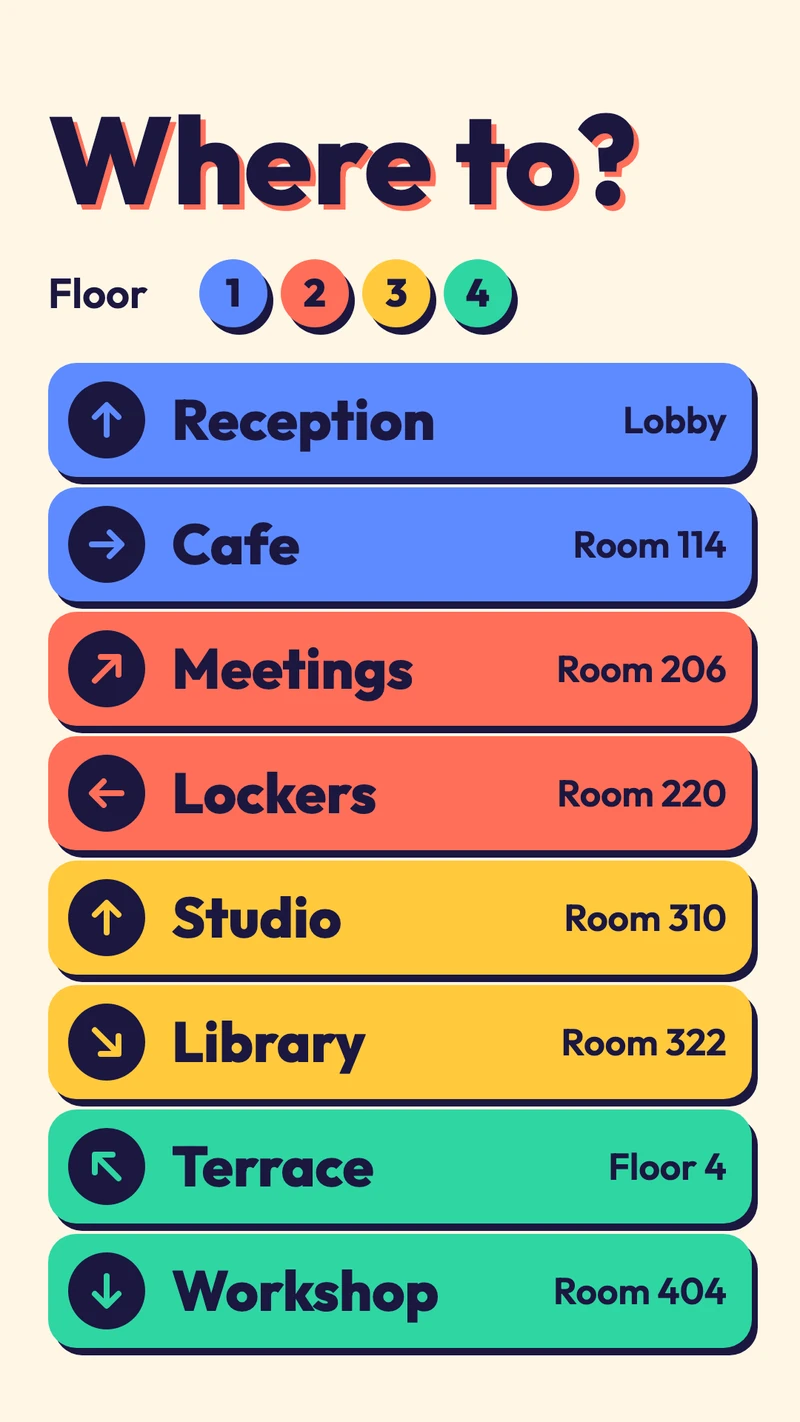
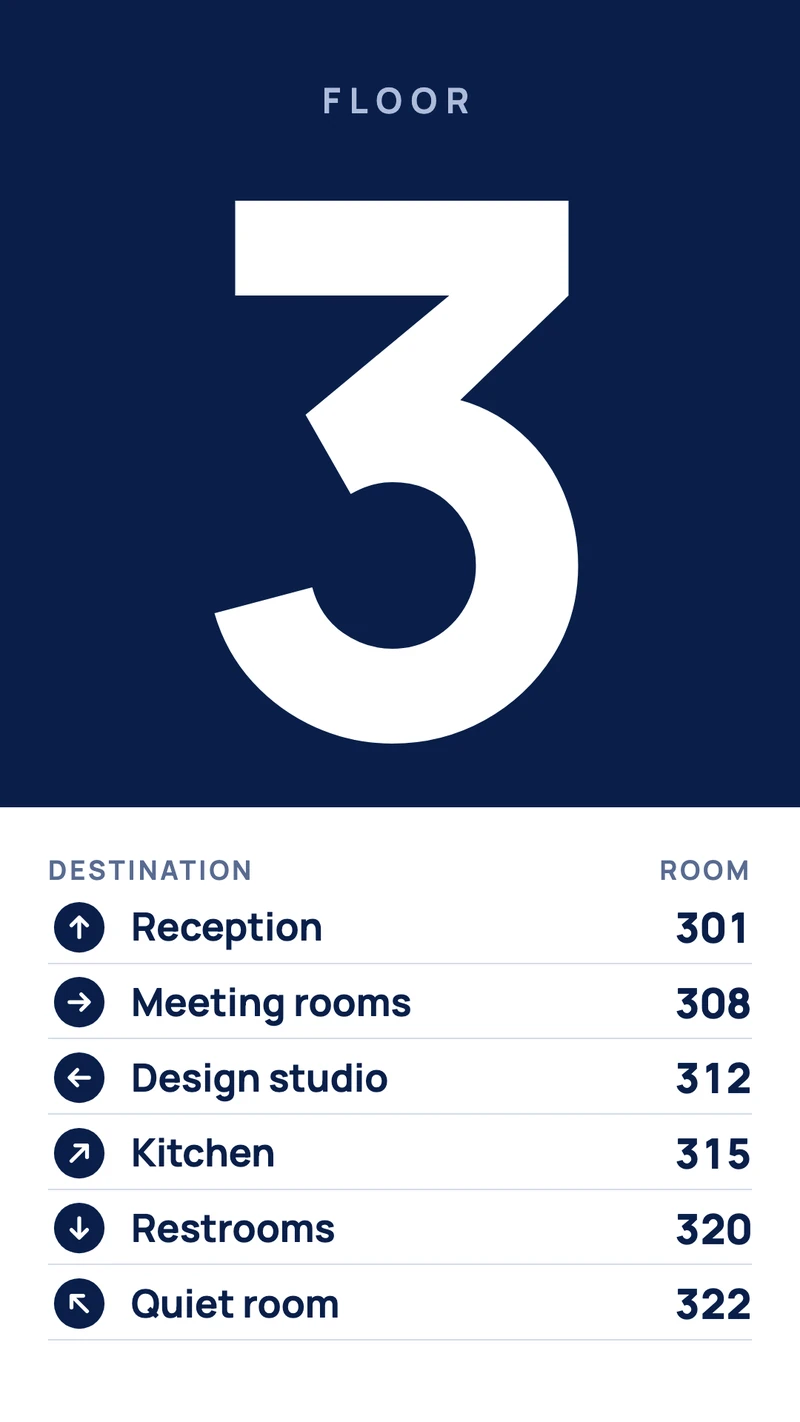
A directory answers one question, where is it, and the examples that work answer it at a glance: large floor numbers, tenants in a single column, and an arrow when the way is not obvious. These are designed for portrait screens at an entrance or in front of the elevator. When a tenant moves, you edit one line instead of ordering a new plate.
How to make your own from an example
Every example above is a template in the Designer, so making your own means choosing one, replacing the sample content and sending it to a screen. The Designer runs in a browser on a computer.
Pick the template that is closest
Choose by layout and mood, not by the sample words. The wording, names and prices in the examples are placeholders.
Open it in the Designer
In your dashboard, go to Files, click New and choose New design. Name it, choose Landscape or Portrait to match how your screen hangs, keep Resolution on HD, then choose a category and a template.
Change the text and pictures
Double-click a line and type over it. To use your own photo, select the picture and choose Replace image. Each line is its own element, so you can move it or restyle it in the panel on the right. The Designer saves as you go.
Send it to your screen
Click Send to screen, choose the screen and click Send. If the TV hangs in portrait, set Orientation in the screen's settings first. After that, every change you save reaches the screen by itself.
Add timing if the content expires
Give a notice or an offer a Valid until date, or put designs in a schedule so a breakfast menu, an opening hours card or a promotion plays at the right time.
If you would sooner describe what you want, the AI assistant can pick one of the templates and fill it in with your text; check the result before you send it to a screen. Designs are stored on the player, so a screen keeps playing them when the internet drops.
Design tips that make examples work
The examples above look good because they follow a handful of rules that apply to any screen. They also hold when you start from a blank design.
- One message per slide. If a slide needs a paragraph, make it two slides.
- Large type. Stand where the viewer stands, a few meters from the screen, and check that you can read it without leaning in.
- Strong contrast. Dark text on a light background, or the reverse. Avoid text over a busy photo unless it sits on a solid panel.
- One clear next step: a time, a room number, a price or a QR code. A QR code needs to be large and scannable from the distance people will stand.
- Keep important text away from the edges, because some TVs crop the picture slightly.
- Use sharp pictures that fill the screen. An HD design is 1920 by 1080 pixels (1080 by 1920 in portrait).
- Leave a slide on screen long enough to read twice. A few slides in a playlist keep a screen alive better than one slide that never changes.
- Keep it current. A stale screen teaches people to ignore it, so give anything that expires an end date.
Fit the screen, not the template
Choose Landscape or Portrait to match how the screen hangs before you start designing. A landscape design rotated onto a portrait screen leaves small text and empty bars.
Digital signage examples: common questions
Put one of these examples on your own screen
Start 7-day free trialFrom $14 per screen per month, billed yearly
7-day free trial. Cancel anytime.