Switch your whole venue with one button
For venues, churches and live productions, where nothing runs exactly on time. Set up what every screen shows for doors open, the intermission and the close. When the moment comes, one button switches them all, each to its own content. One more and everything is back on its normal schedule.


How Scenes works
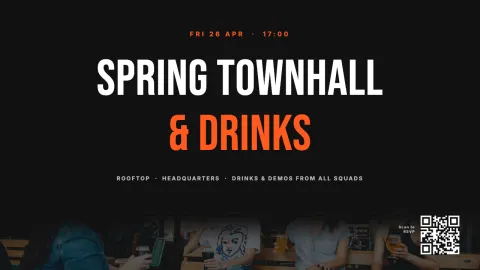
Set up the moment
Make a scene and choose what each screen shows then. The foyer can show something other than the bar.
Press Go
Every screen in the scene switches at once. Screens that are not in it keep running.
Back with one click
Press Stop and every screen goes back to its own content. Your schedule stays as it was.
For the moments you can't schedule
A schedule works when you know the time in advance. Live, you don't: intermission starts when the first act ends, and the service runs over. A scene waits until you press Go. Afterwards everything goes back to the schedule, which you never had to touch.
Every screen its own content
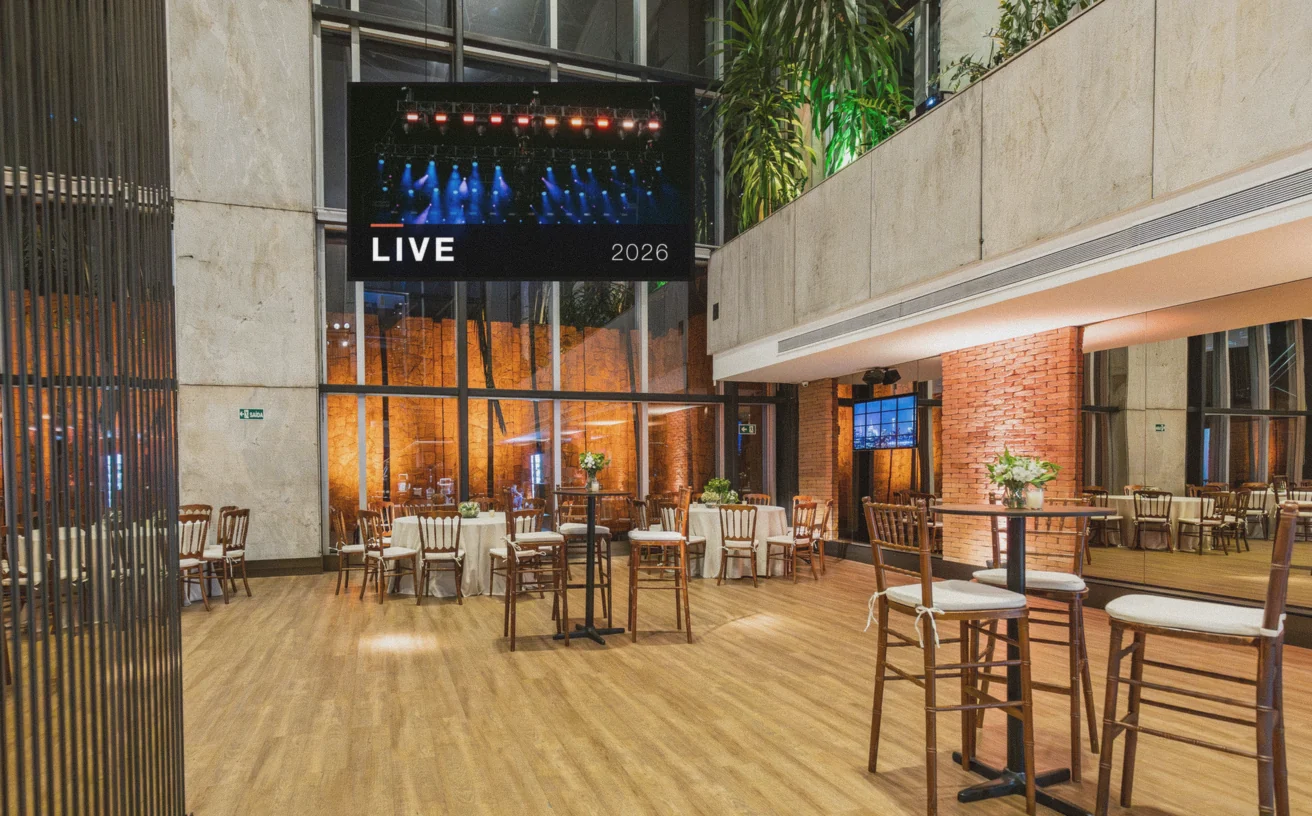
A push puts one item on your screens. A scene is a whole moment: the foyer shows the intermission offer, the bar the menu, the hall the sponsors, and on a split screen you change just one sub-screen. The Live overview shows what every screen is showing, and changes only go live when you say so.
Run it from where you are
During a show or service you are rarely behind a laptop. On your phone, Scenes becomes a remote with a big Go button per scene. With a Stream Deck and Bitfocus Companion, every scene gets its own button next to your lights and sound, and the button shows what is live. Give a volunteer the User role and they can start scenes but not change them.
Built for every industry
See how this feature works in your industry.

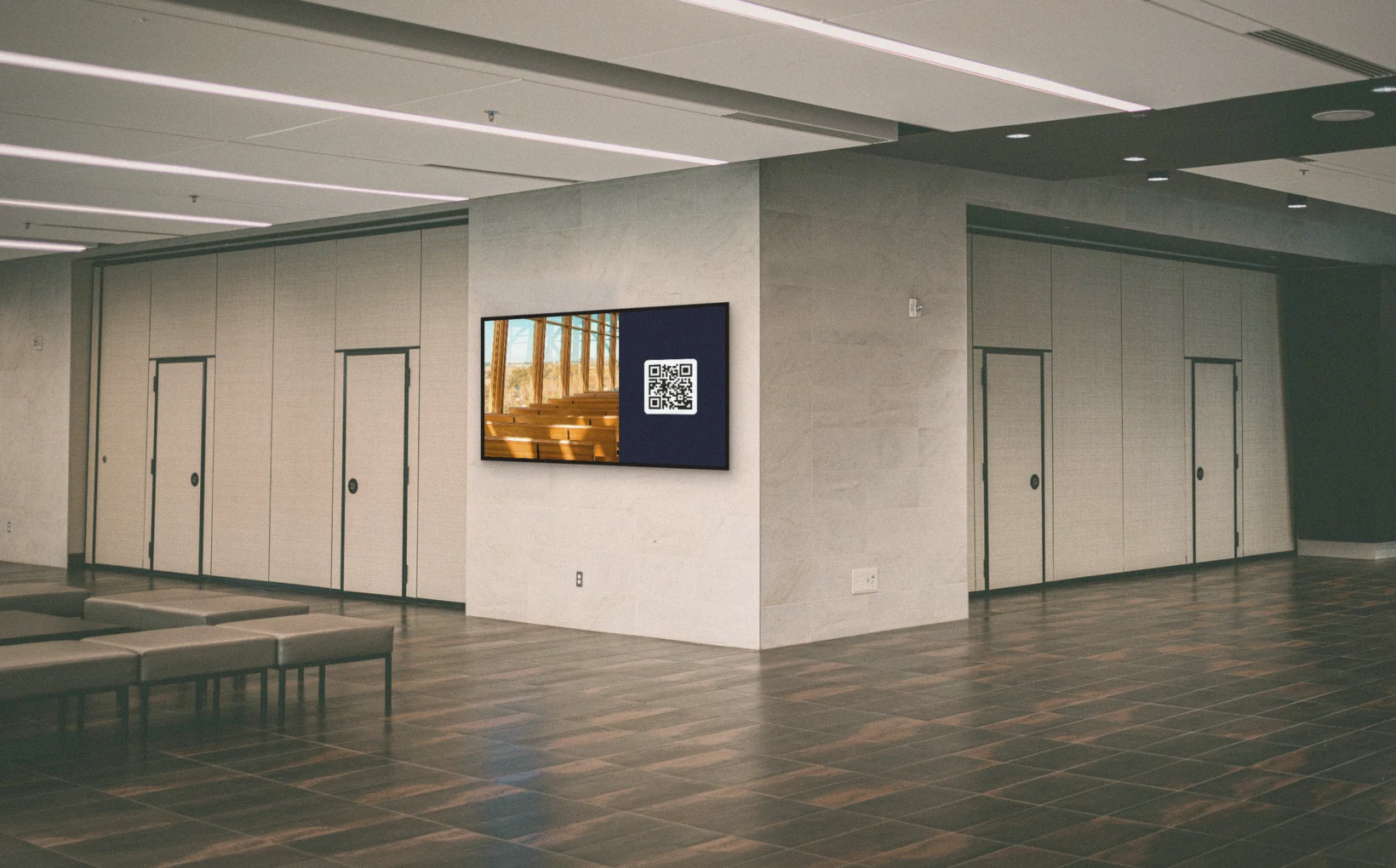
Explore more features
Scheduling
Plan the normal content your screens go back to.
Offline Mode
Content keeps playing when the internet drops.

Split Screen
Run sub-screens and change just one of them in a scene.
AI Assistant
Ask for what you need in plain words, and it does the work once you confirm.
Designer
Create custom designs to display in your split screen zones.
Apps & Integrations
Add live data, social feeds, and external content to your designs.
Frequently asked questions
Everything you need to know. Can't find your answer? Check our help center.
Try Scenes on your own screens
Set up your first scene in minutes.
Create free accountFrom $14 per screen per month, billed yearly
Every feature included. Cancel anytime.